
Locate the segmentation lists for License and LMO reminder email campaigns.
Go to the sidebar menu and click on “Lists” under the CRM section.
%207.59.31%20a.m..png?width=450&height=790&name=Captura%20de%20pantalla%202024-11-25%20a%20la(s)%207.59.31%20a.m..png)
Click on “Folders.”
%208.00.58%20a.m..png?width=450&height=97&name=Captura%20de%20pantalla%202024-11-25%20a%20la(s)%208.00.58%20a.m..png)
Click on the folder “Compliance Documents List” and then select either License or LMO. Inside License, you will find 4 lists, and in LMO, there is 1 list. Enter each list to review. These are active lists that automatically segment clients based on specific criteria.
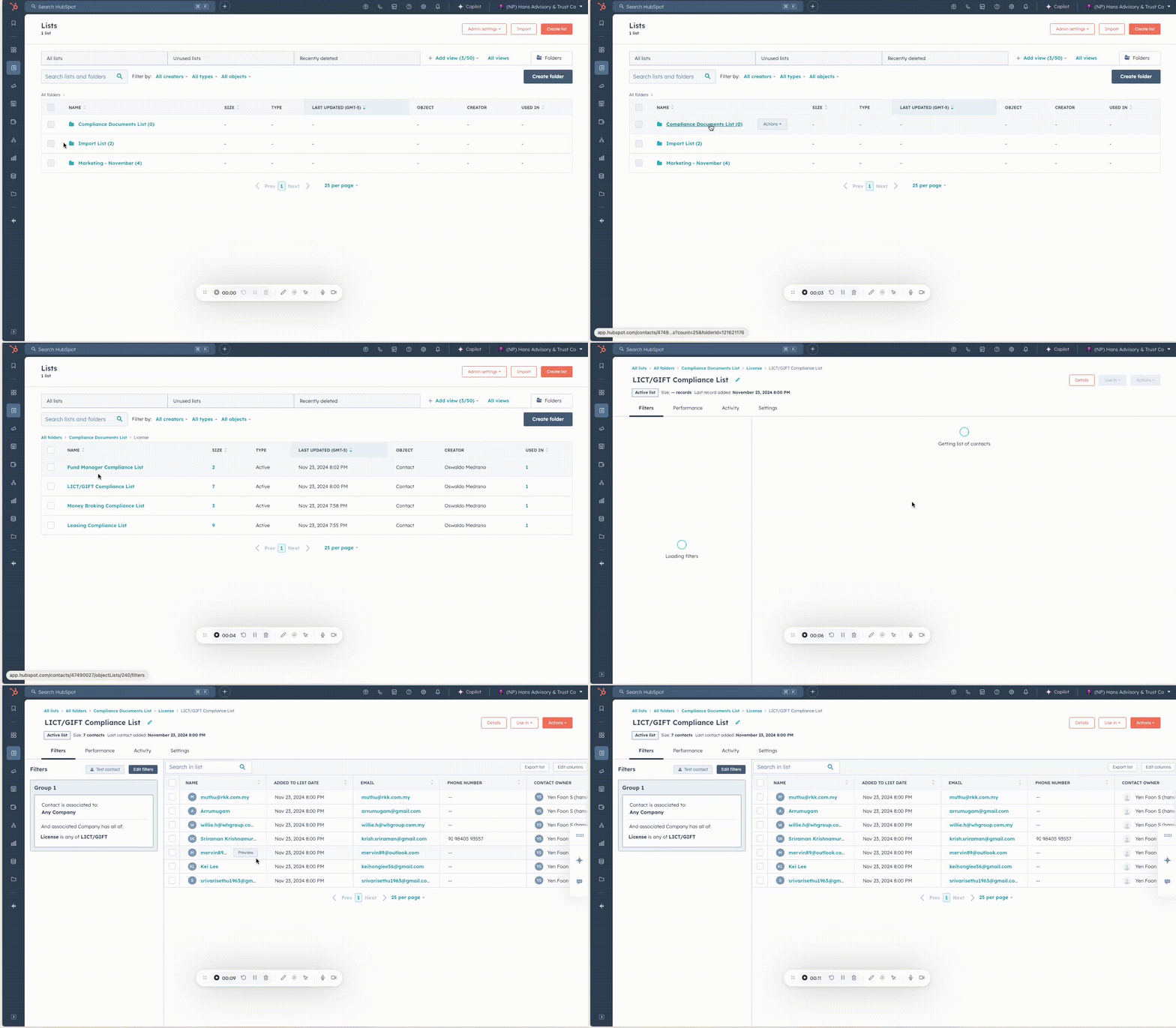
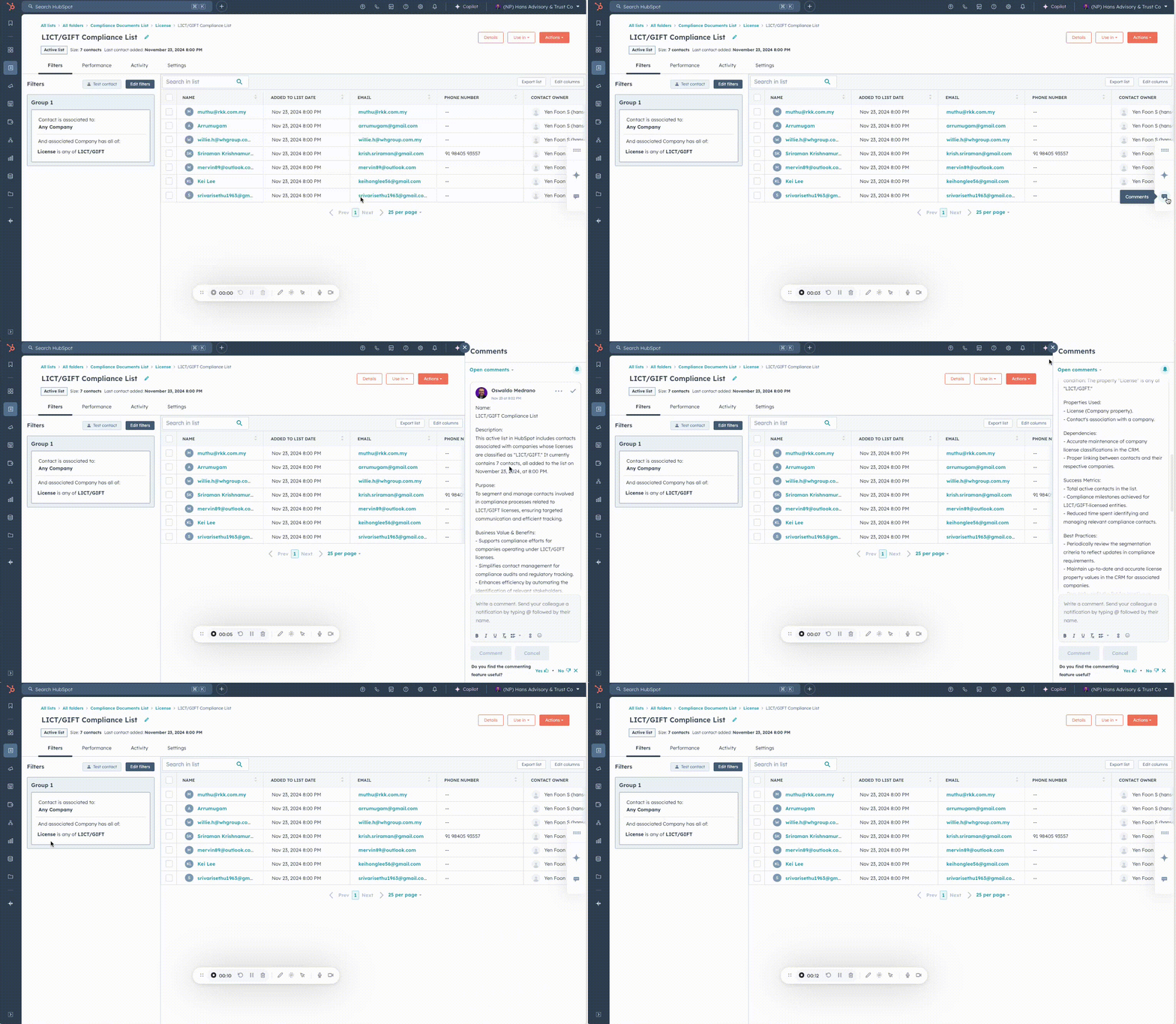
You can now check in the comments how each list was created.
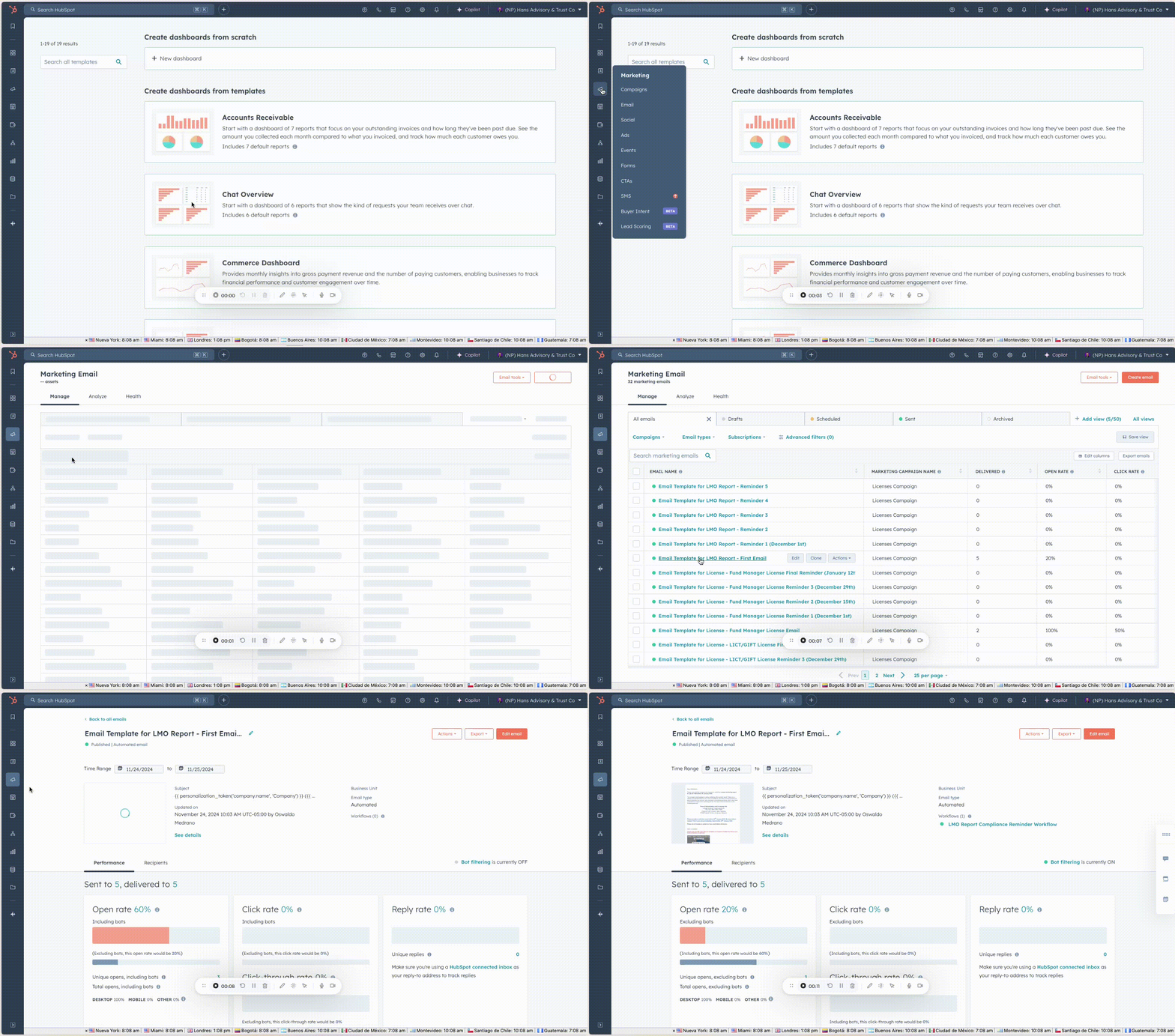
Review how a contact from these lists views an email.
Go to the sidebar menu, navigate to Marketing, and then click on Emails. Choose the email you want to test, for example: “Email Template for LMO Report - First Email.”
On the screen of the email you selected, click Edit, then go to Preview, and choose Preview as a Contact. At the top, select the contact you want to test; for this example, use “sultan.lahham@gmail.com”. There, you can check how the Subject appears.
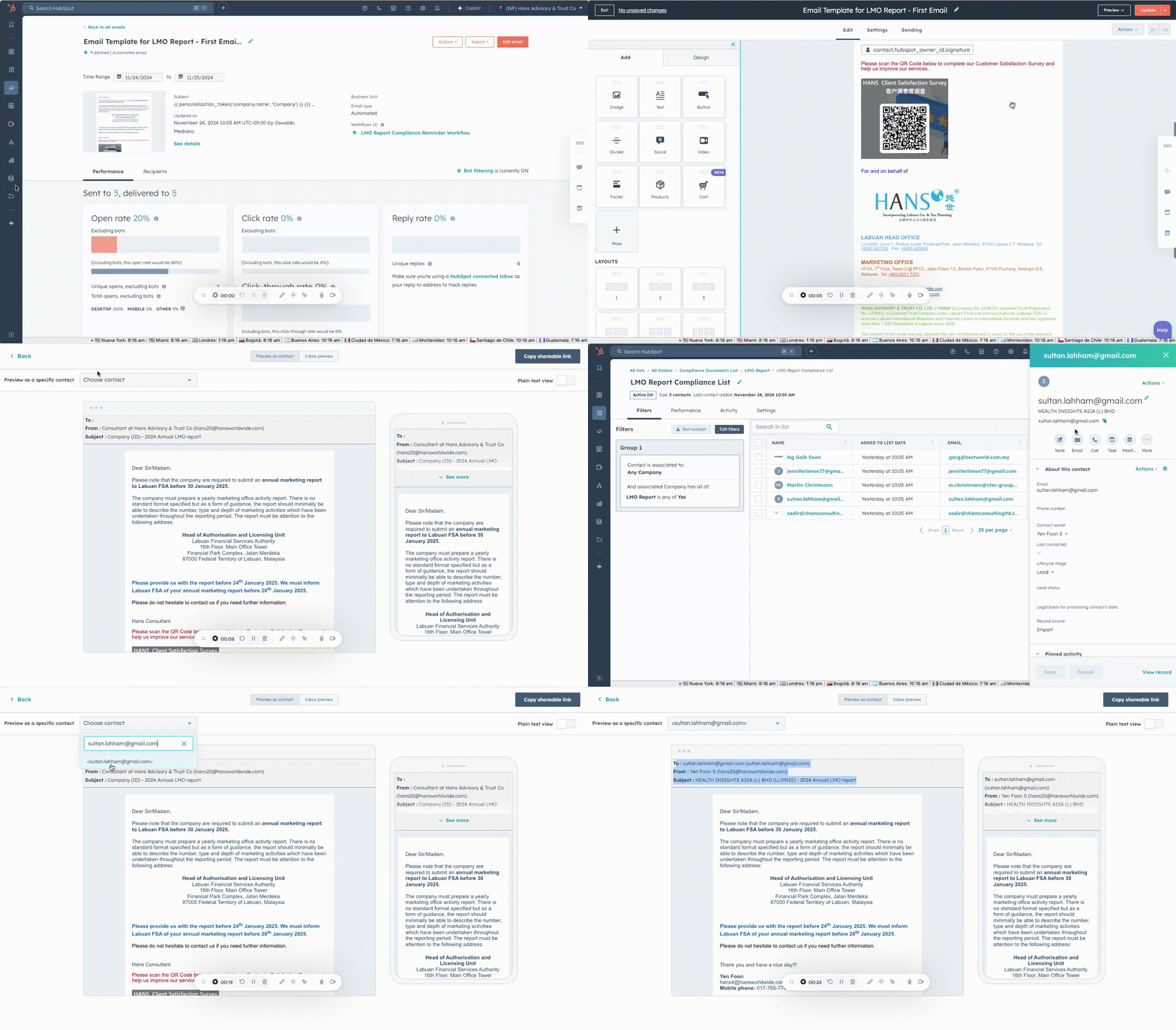
Here, you can see how this contact, “sultan.lahham@gmail.com”, views the email, specifically in the Subject line.
%208.19.42%20a.m..png?width=450&height=79&name=Captura%20de%20pantalla%202024-11-25%20a%20la(s)%208.19.42%20a.m..png)