
Lead Entry into HubSpot
Deals in the New Incorporations pipeline can be created from two main sources:
- Manual creation of the deal.
- Automatic creation as a result of a potential client filling out a company web form.
Let’s start with the manual deal creation process.
Manual creation of New Incorporation deals.
If you, as a consultant, wish to manually create a deal in the New Incorporations pipeline, you can do so in the following ways:
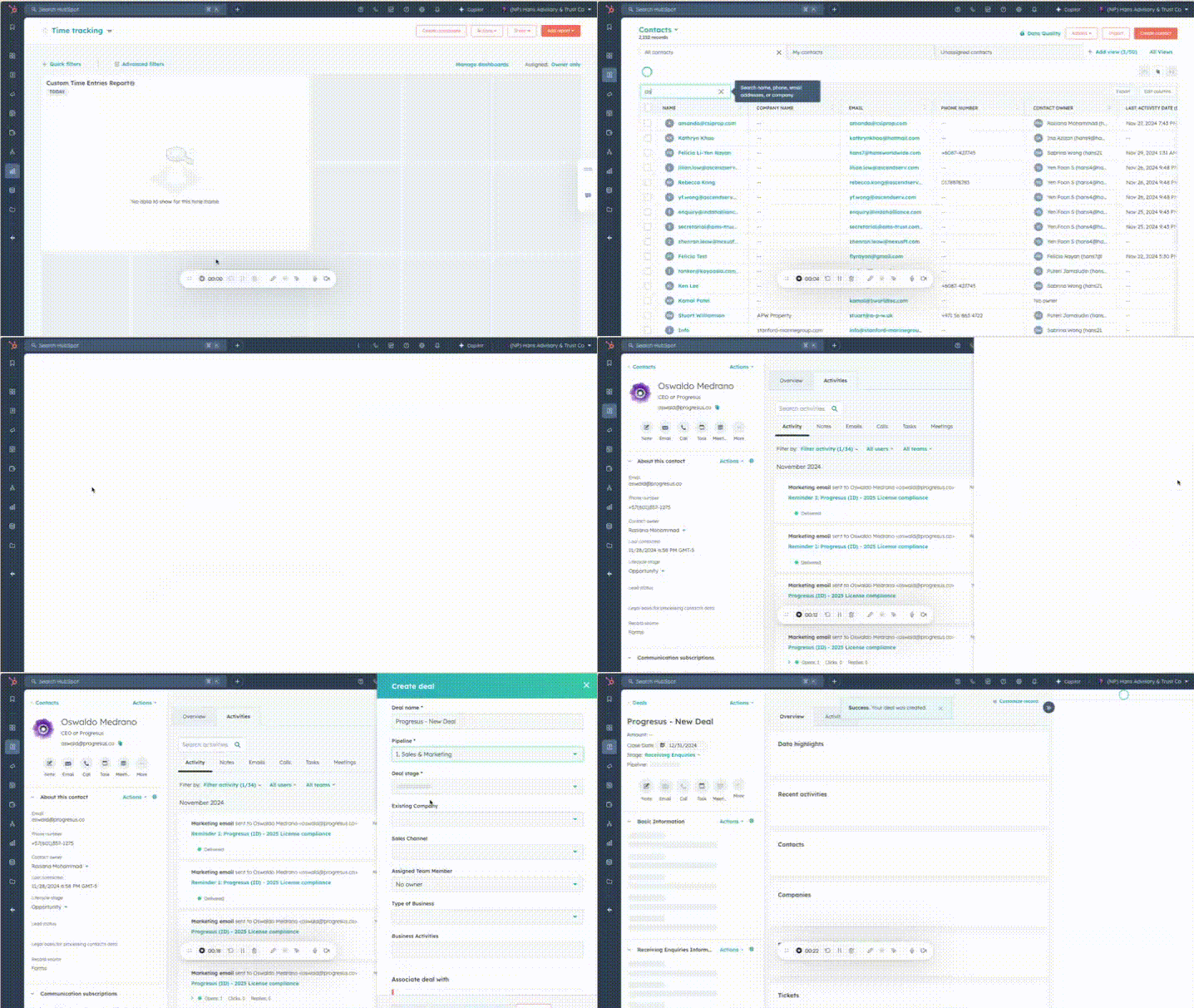
Option 1
- If the contact interested is already created in HubSpot, go to the contact’s record.
- Open the contact record and, on the right-hand side, look for the “Deals” section.
- In “Deals,” click on “Add.”
- For “Deal Name,” leave the name of your client or company followed by the name of this deal, for example: Oswaldo Medrano - New Incorporation.
- In “Pipeline,” choose Pipeline 1: Sales & Marketing, and in “Deal Stage,” select Receiving Inquiries. The rest of the fields in this form can be filled out if you have the information available.
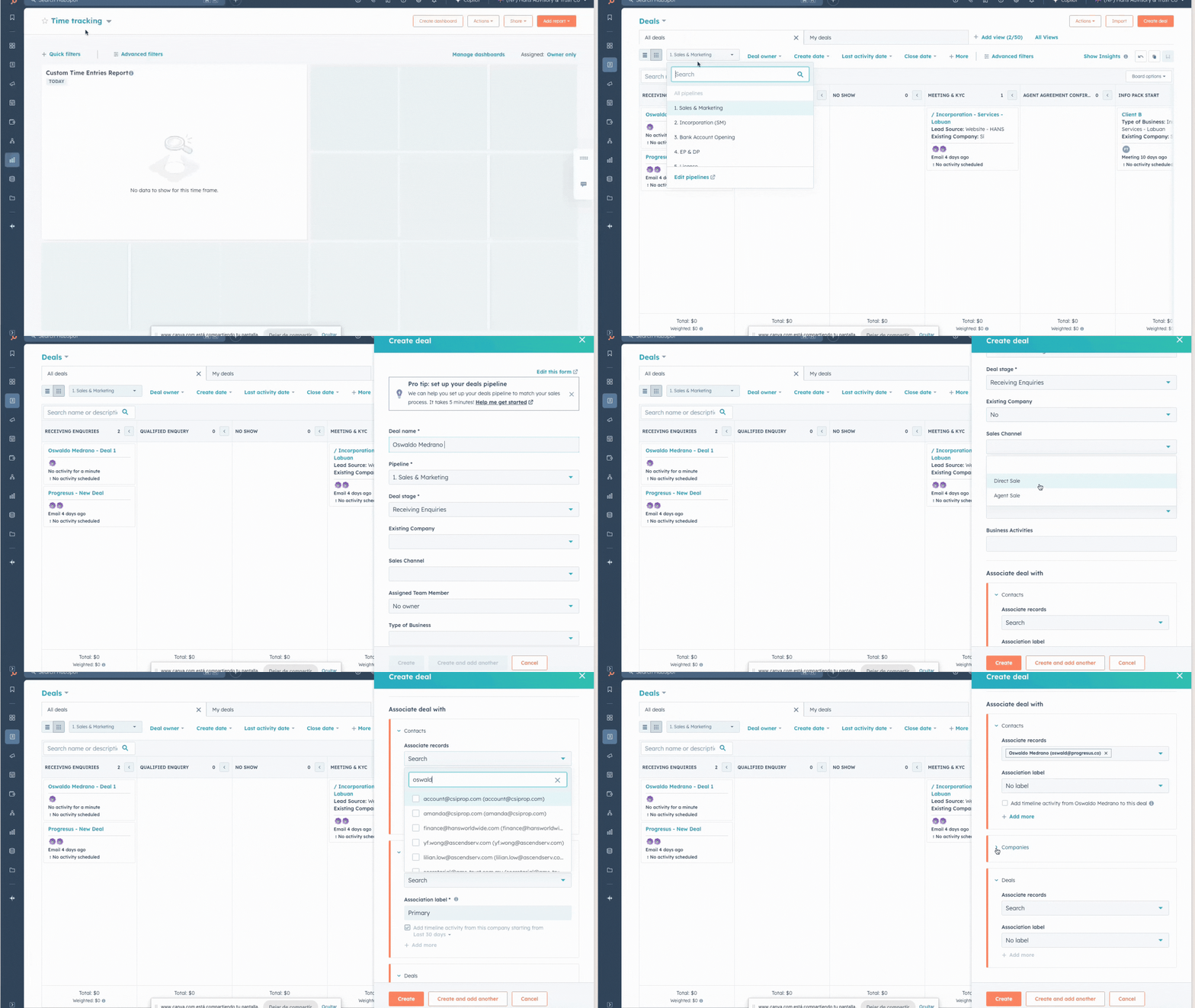
Option 2
- In the CRM, go directly to the “Deals” menu.
- Ensure you are viewing the deals in board format and that you are in the pipeline “1. Sales & Marketing.”
- Click the orange “Create Deal” button in the top right corner.
- Fill out the form with the available information. Always remember to include the name of the company or contact in the “Deal Name” field to make it easy to identify.
- In the “Associate deal with” section, ensure the deal is linked to the associated contact and company. If they have not been created yet, I recommend creating them first.
Automatic creation as a result of a potential client filling out a company web form
If a potential client decides to fill out a form on the website,
%201.07.47%20p.m..png?width=450&height=463&name=Captura%20de%20pantalla%202024-12-02%20a%20la(s)%201.07.47%20p.m..png)
the contact will be automatically created in the contact database,
%201.10.12%20p.m..png?width=450&height=146&name=Captura%20de%20pantalla%202024-12-02%20a%20la(s)%201.10.12%20p.m..png)
and the deal will also be created automatically and associated with the newly created contact.
%201.11.33%20p.m..png?width=450&height=287&name=Captura%20de%20pantalla%202024-12-02%20a%20la(s)%201.11.33%20p.m..png)
Then, it will be assigned to a consultant based on the criteria defined by management. The selected consultant will receive an assignment email and will be able to view the deal in the pipeline. In this example, the assigned consultant was Thum Huey Syu.
What to do once the deal has been created in HubSpot?
If the deal is created automatically because the client filled out a form, the system will automatically send an email to the client asking them to schedule a meeting.
%201.17.38%20p.m..png?width=450&height=382&name=Captura%20de%20pantalla%202024-12-02%20a%20la(s)%201.17.38%20p.m..png)
If the client clicks on the link in the phrase “Could you let us know which of these times suits you best? Explore the available slots here,” a meeting scheduling page will open.
%202.25.56%20p.m..png?width=450&height=357&name=Captura%20de%20pantalla%202024-12-02%20a%20la(s)%202.25.56%20p.m..png)
This page will prioritize the assigned team member, in this case, Thum Huey Syu. It is important to note that this scheduling page is connected to the team member’s Outlook calendar.
%202.26.14%20p.m..png?width=450&height=363&name=Captura%20de%20pantalla%202024-12-02%20a%20la(s)%202.26.14%20p.m..png)
The deal will then automatically move from the stage “Receiving Enquiries” to “Qualified Enquiry.”
%202.28.58%20p.m..png?width=450&height=319&name=Captura%20de%20pantalla%202024-12-02%20a%20la(s)%202.28.58%20p.m..png)
The client may schedule a meeting using the scheduling page, in which case the meeting will be logged in the deal record.
If the client does not schedule a meeting, but the consultant manages to arrange one, it is recommended that the consultant schedules it directly in HubSpot.
.gif?width=450&height=253&name=Dise%C3%B1o%20sin%20t%C3%ADtulo%20(6).gif)
If the consultant logs the meeting in the deal record and categorizes the meeting type as Qualified Enquiry, the system will automatically move the deal record to “Qualified Enquiry.” If it does not move automatically, the consultant has the authority to move it manually by dragging the record to that stage in the pipeline.
%202.50.50%20p.m..png?width=450&height=241&name=Captura%20de%20pantalla%202024-12-02%20a%20la(s)%202.50.50%20p.m..png)
If, on the other hand, the potential client does not schedule a meeting using the scheduling page, or the consultant has not been able to schedule a meeting or log any activity for a period of 7 days, the deal will automatically move from “Qualified Enquiry” to the “No Show” stage. If the deal does not move automatically, the consultant can manually move it to the “No Show” stage.
%202.54.55%20p.m..png?width=450&height=291&name=Captura%20de%20pantalla%202024-12-02%20a%20la(s)%202.54.55%20p.m..png)
This will trigger a sequence of three automatic emails sent to the client to gauge their interest. You can review the sequence and its enrollments as follows:
1. Go to the main menu and select Automations.
2. In the Automations menu, click on Sequences.
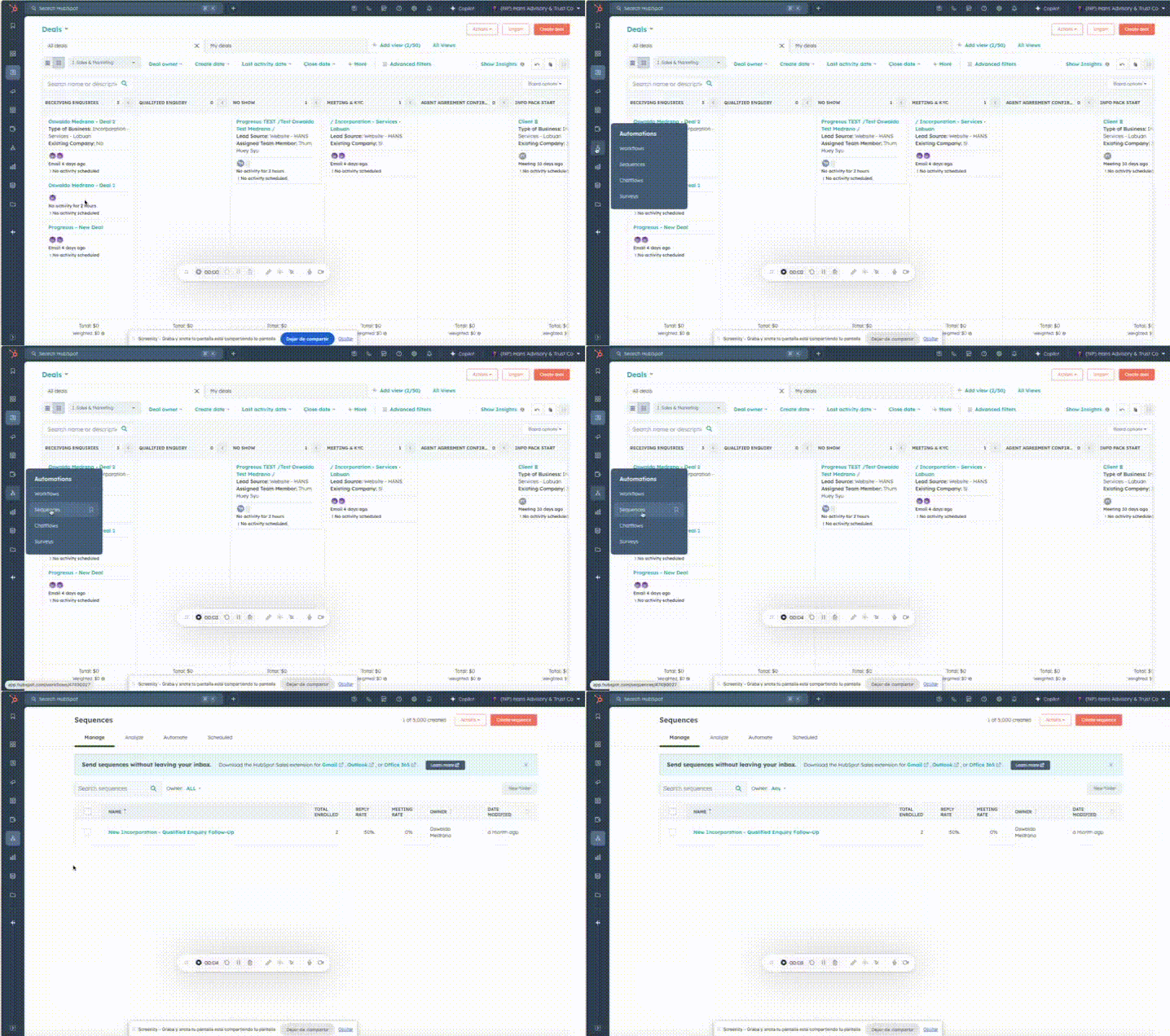
3. Make sure to set the Owner filter to “Any”, and you will see a sequence called “New Incorporation - Qualified Enquiry Follow-Up.”
4. Click on that sequence.
%203.05.03%20p.m..png?width=450&height=259&name=Captura%20de%20pantalla%202024-12-02%20a%20la(s)%203.05.03%20p.m..png)
5. Ensure you remove the filter in “Enrolled By” by clicking the X.
%203.09.55%20p.m..png?width=450&height=259&name=Captura%20de%20pantalla%202024-12-02%20a%20la(s)%203.09.55%20p.m..png)
6. If you want to check who has been sent this sequence, you can view it in the Enrollments tab.
%203.07.49%20p.m..png?width=450&height=257&name=Captura%20de%20pantalla%202024-12-02%20a%20la(s)%203.07.49%20p.m..png)
%203.12.52%20p.m..png?width=450&height=154&name=Captura%20de%20pantalla%202024-12-02%20a%20la(s)%203.12.52%20p.m..png)
Note: If you want to view the content of the emails, you can click on the Steps tab, where you’ll be able to see the content of each email, the number of steps, and more.
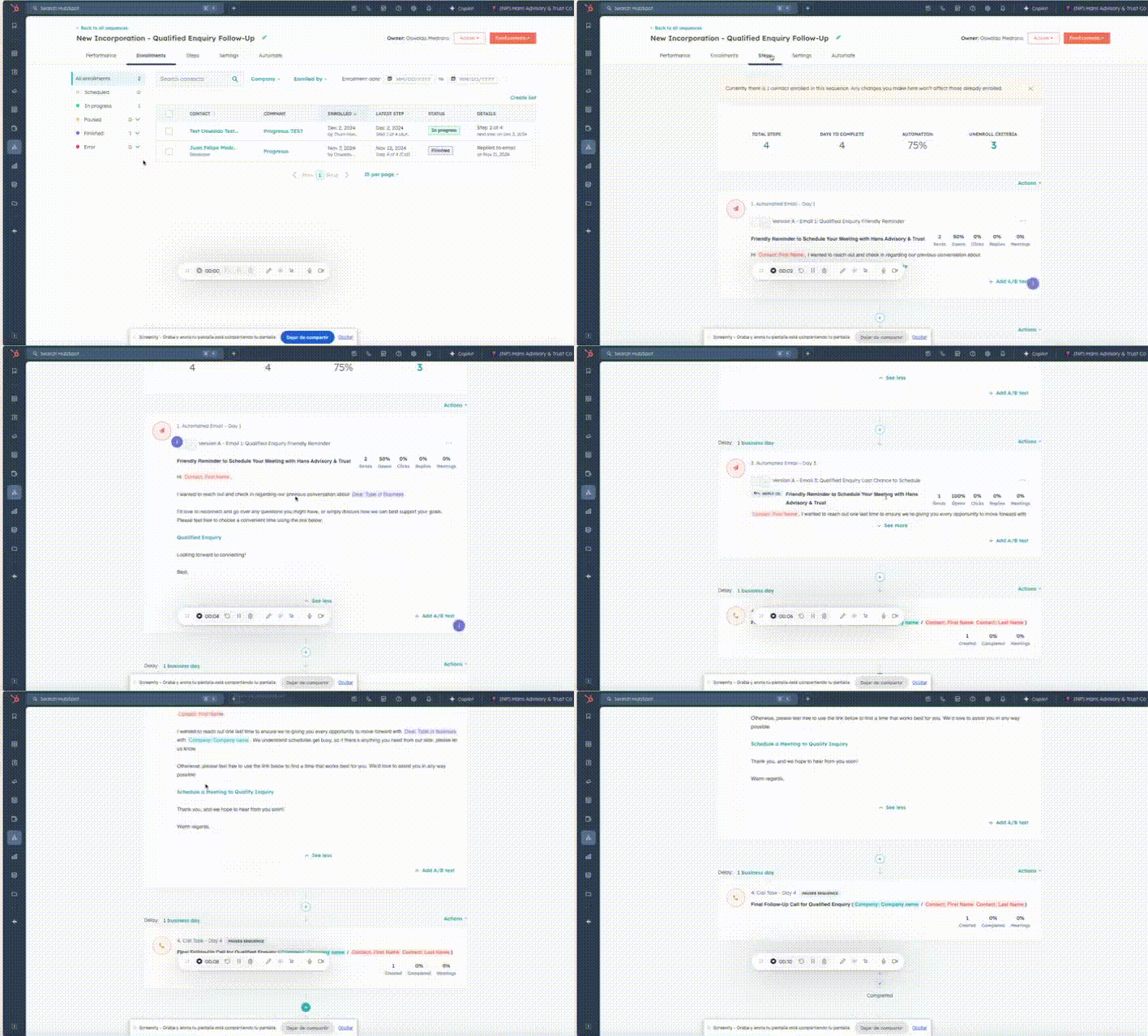
Note: Here is an example of the automatic follow-up email sent as part of the sequence on behalf of the consultant.
%203.56.43%20p.m..png?width=450&height=321&name=Captura%20de%20pantalla%202024-12-02%20a%20la(s)%203.56.43%20p.m..png)
As you can see, this sequence consists of four steps: three emails sent (one per day) and a final task. The sequence will end when the potential client schedules a “Qualified Enquiry” meeting or responds to one of the emails. If the client neither schedules a meeting nor responds, the sequence will conclude with a task assigned to the consultant to call the client.
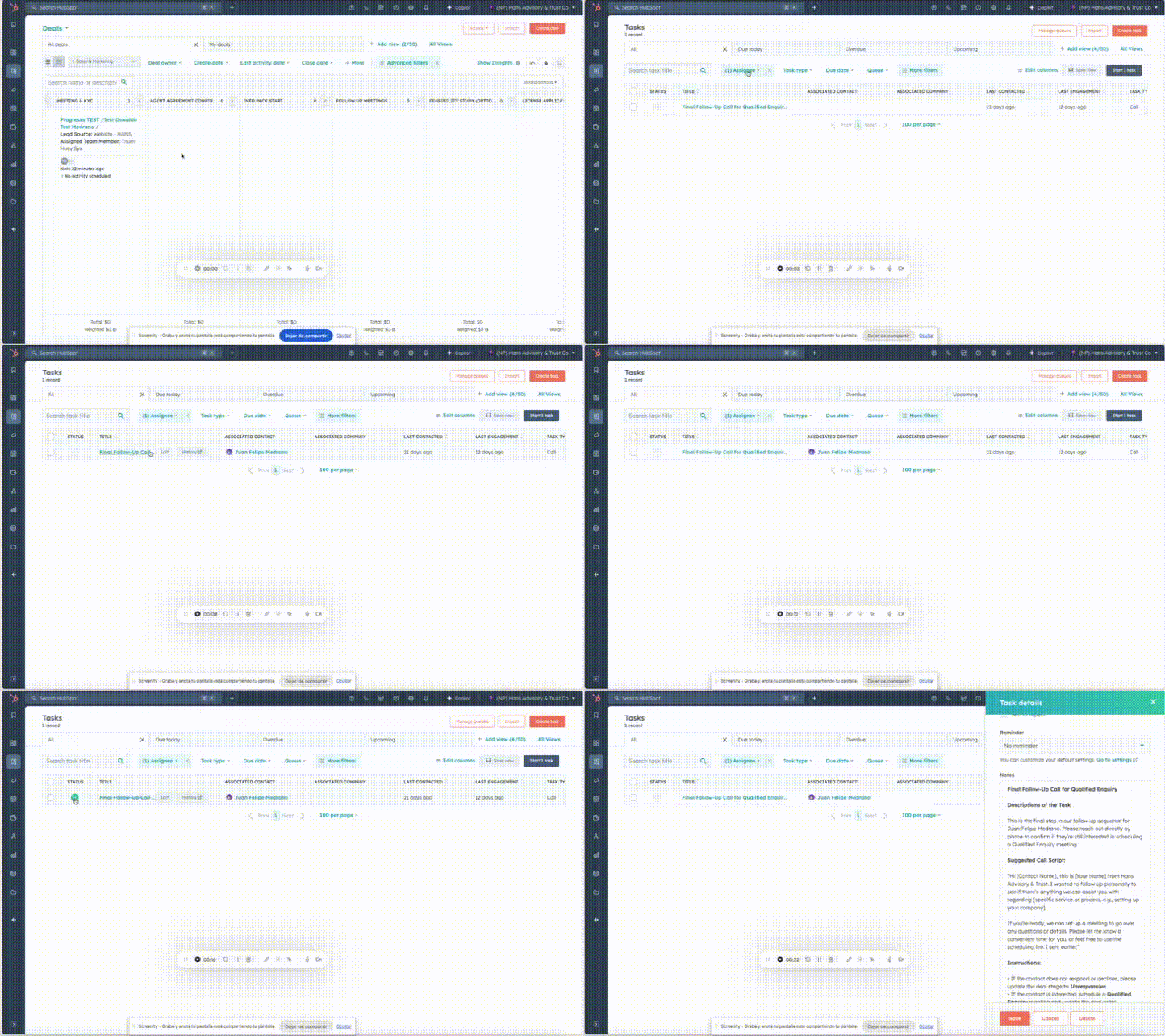
The assigned consultant will receive an email notifying them that a task has been assigned to call the client and schedule a meeting. They can also review their pending tasks in the Tasks menu within the CRM.
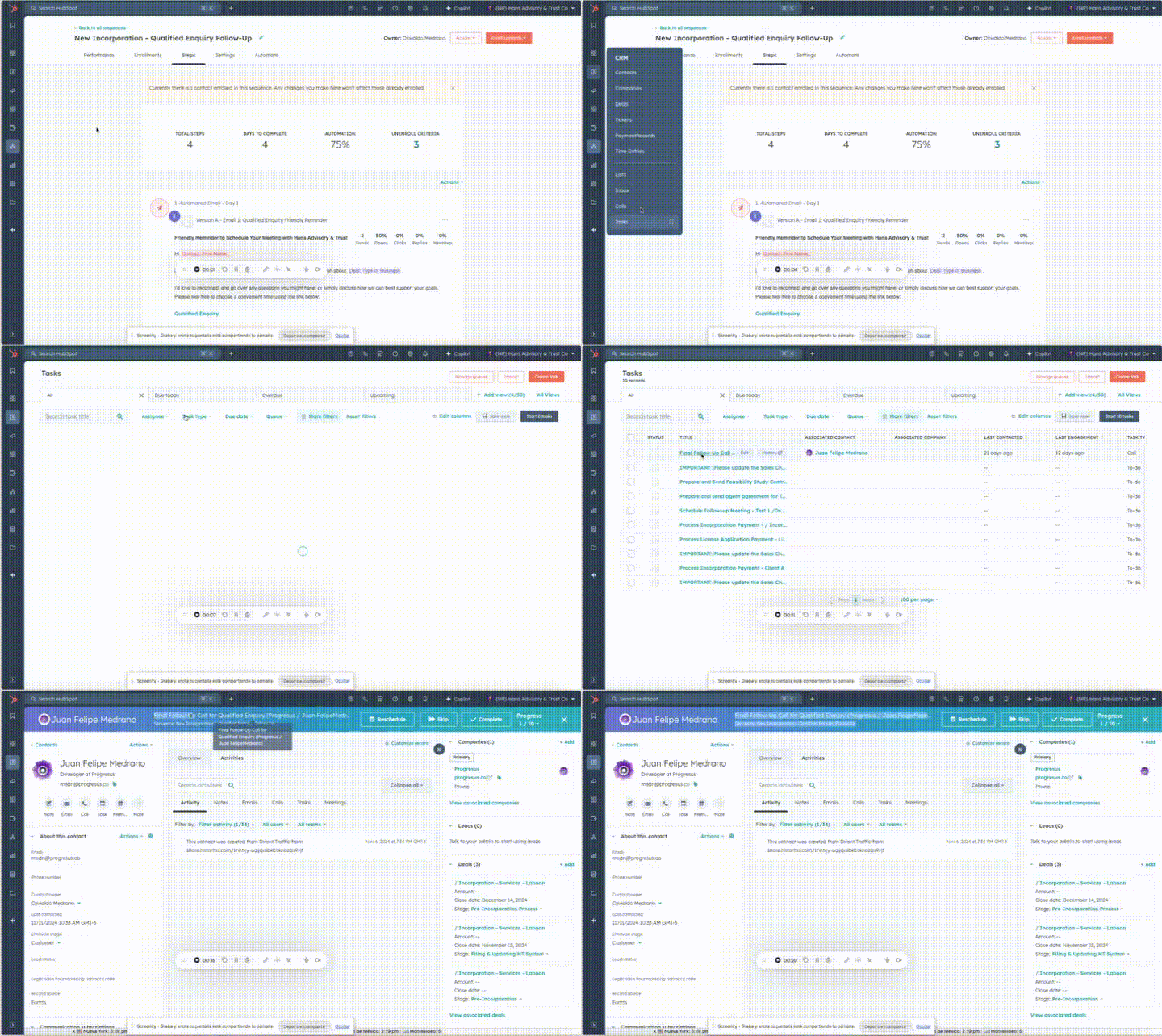
If, despite automatic or manual attempts, the client does not schedule a meeting or show any activity, the consultant will manually move the deal to the “Unresponsive” stage. To do this, simply open the deal, and on the left-hand side, select the pipeline stage and set it to “Unresponsive.”
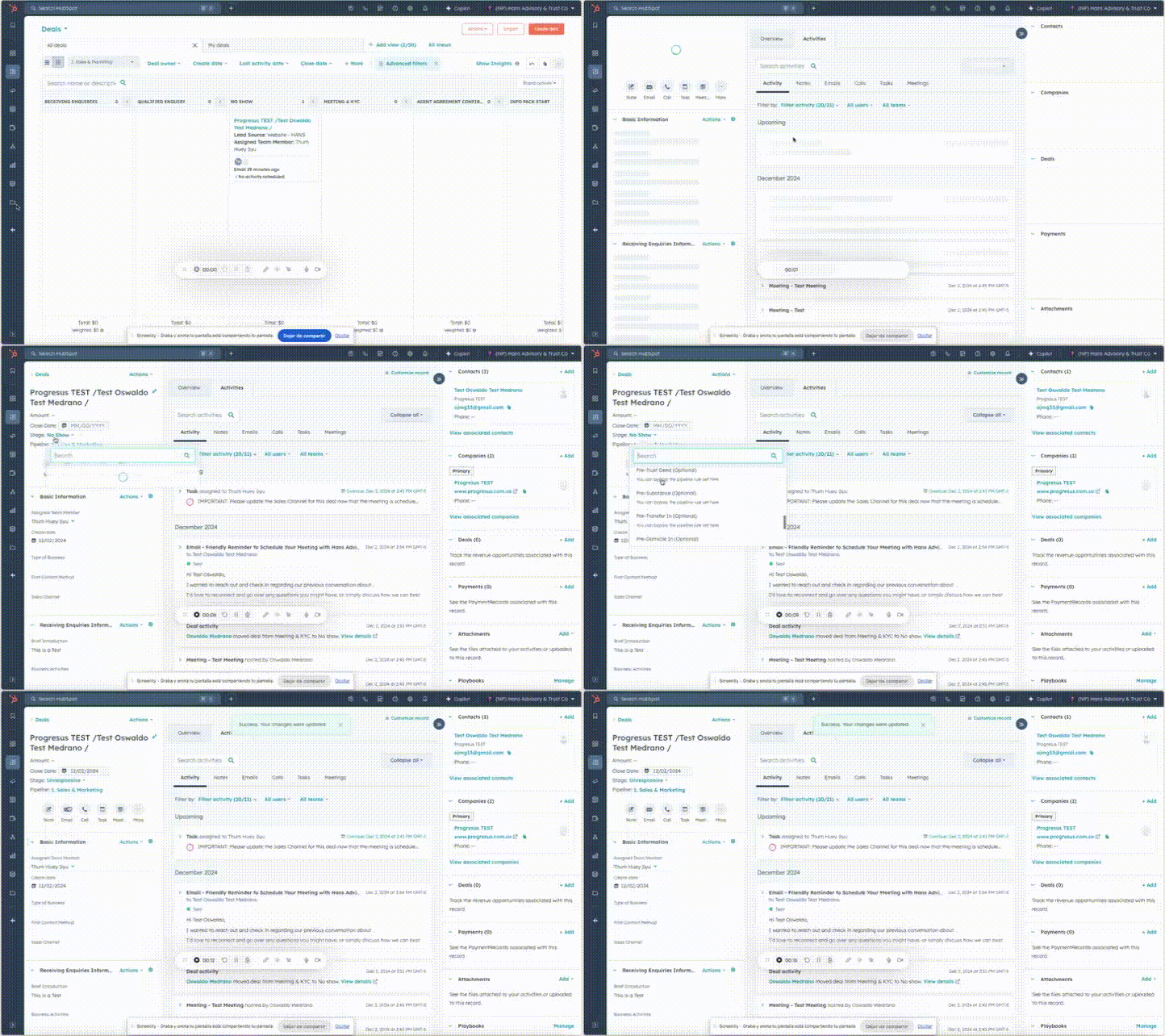
This will classify the deal in the “Unresponsive” stage, which is a lost stage.
%203.26.09%20p.m..png?width=450&height=179&name=Captura%20de%20pantalla%202024-12-02%20a%20la(s)%203.26.09%20p.m..png)
Clients who do schedule a meeting.
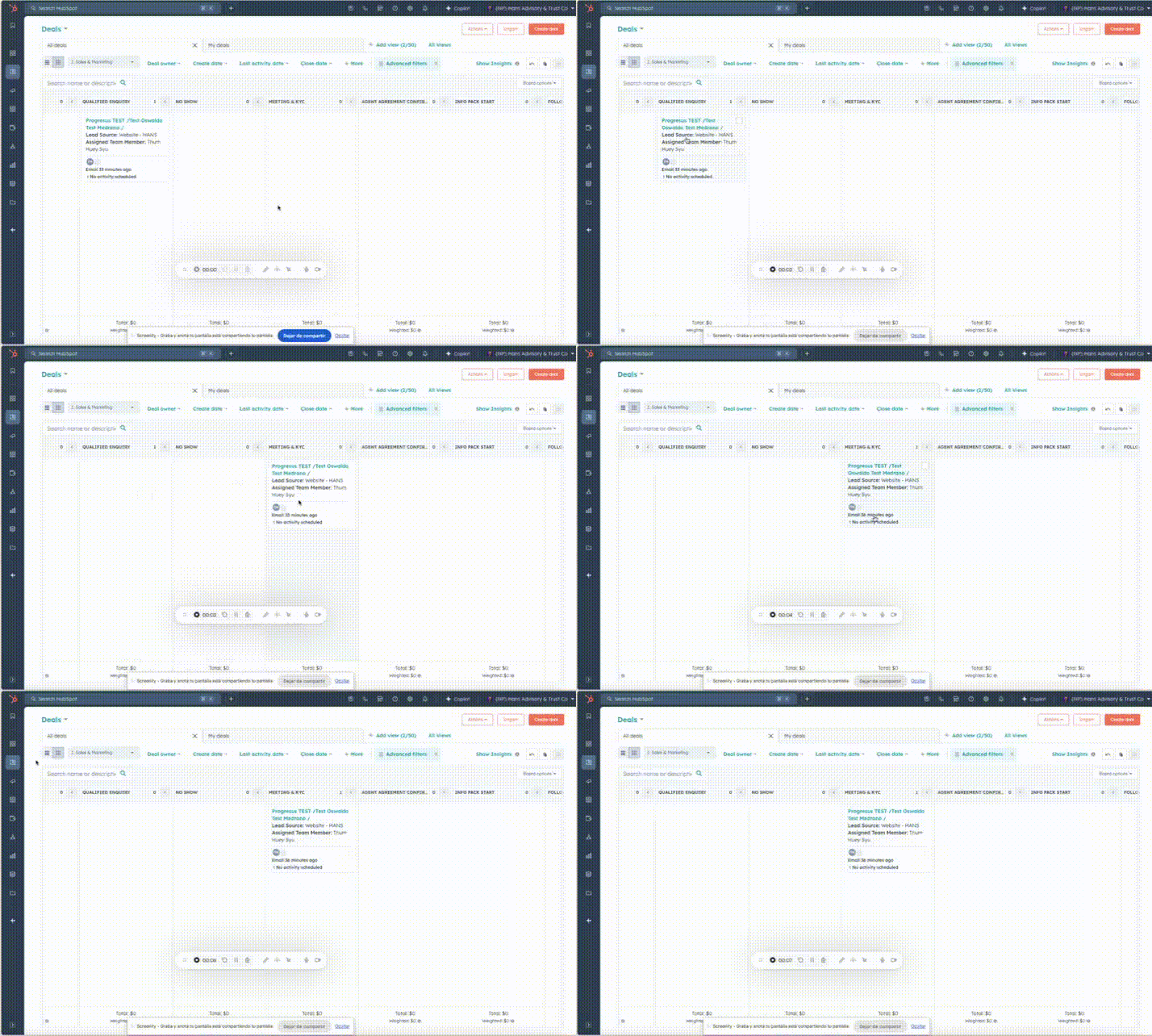
If the client schedules a meeting, either through the scheduling page or manually, the consultant must manually move the deal to the “Meeting & KYC” stage.
In this stage, as a consultant, you should aim to gather as much information as possible about your potential client. To record important data, I suggest opening the deal and, on the right-hand side, accessing the playbook called “Advisor Guide for the Meeting & KYC Stage in the New Incorporation Pipeline.” This playbook will provide you with a guide to the questions you could ask during your diagnostic meetings.
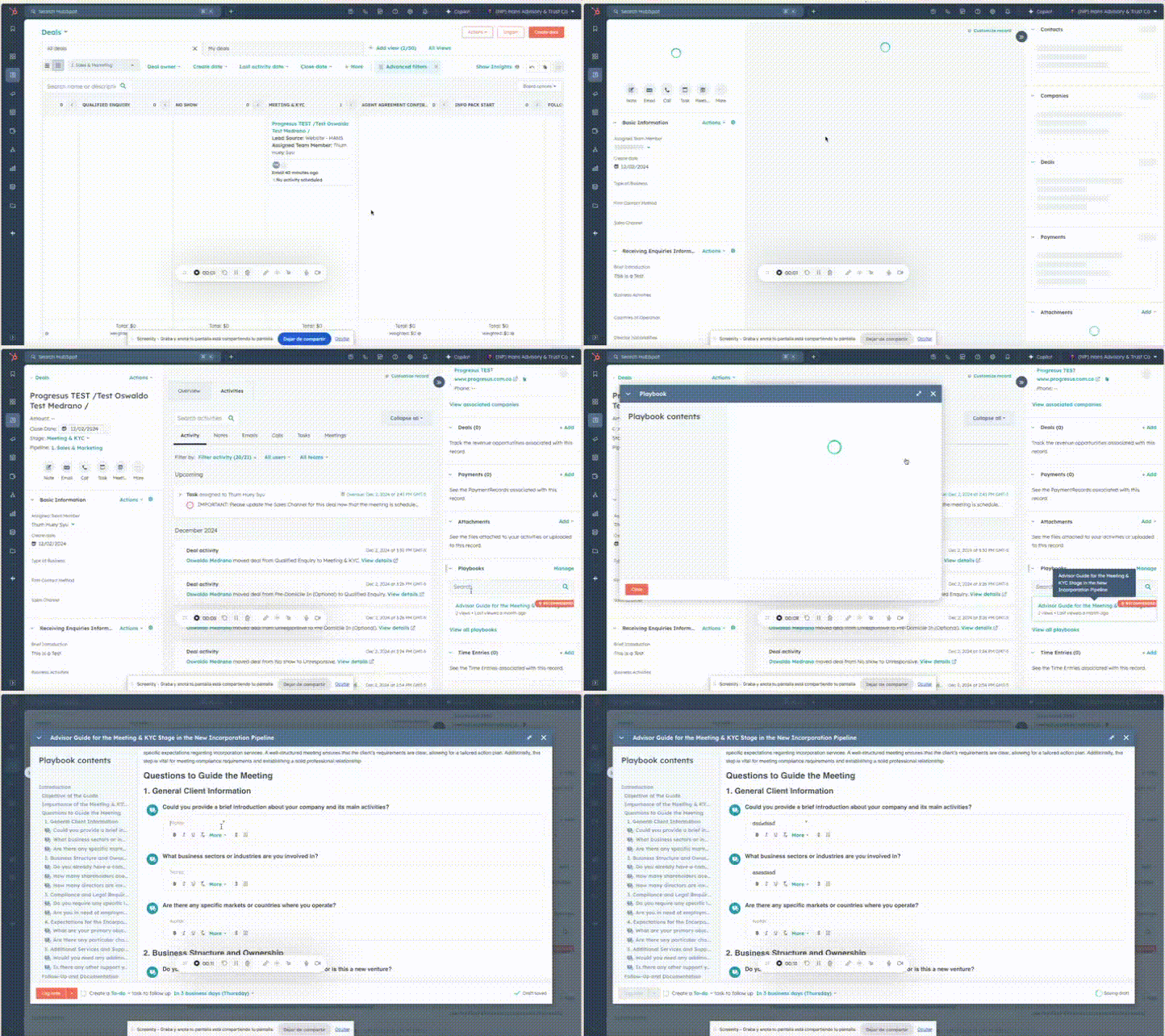
When you complete all the information from the guide, it will be saved as a note in the activity history of the deal.
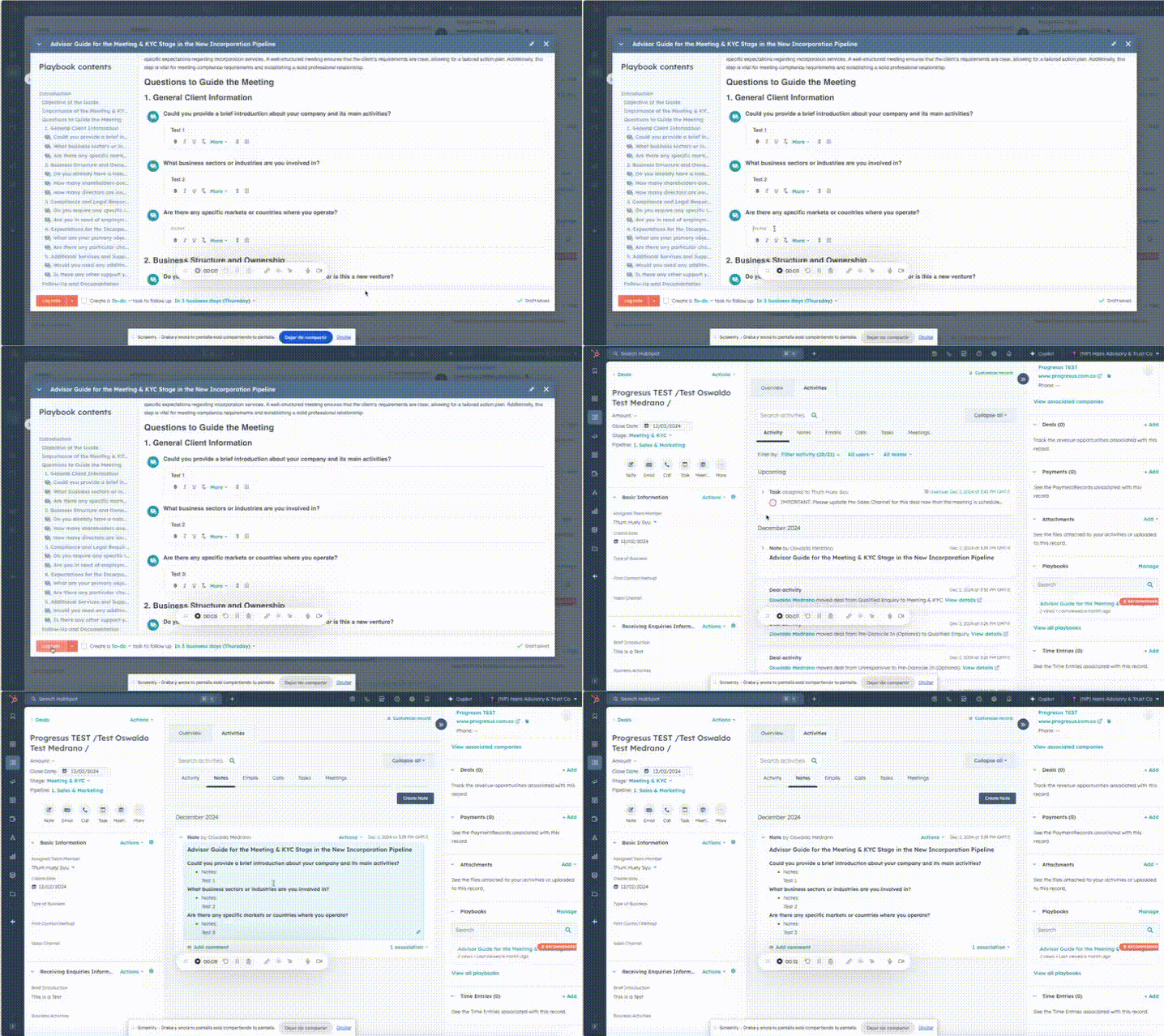
Additionally, when you open the deal, on the left-hand side, you can enter all the information you have gathered. To do this, go to the sections “Receiving Enquiries Information” and “Incorporation Process Needs.” There, you can fill out all the fields for this deal.
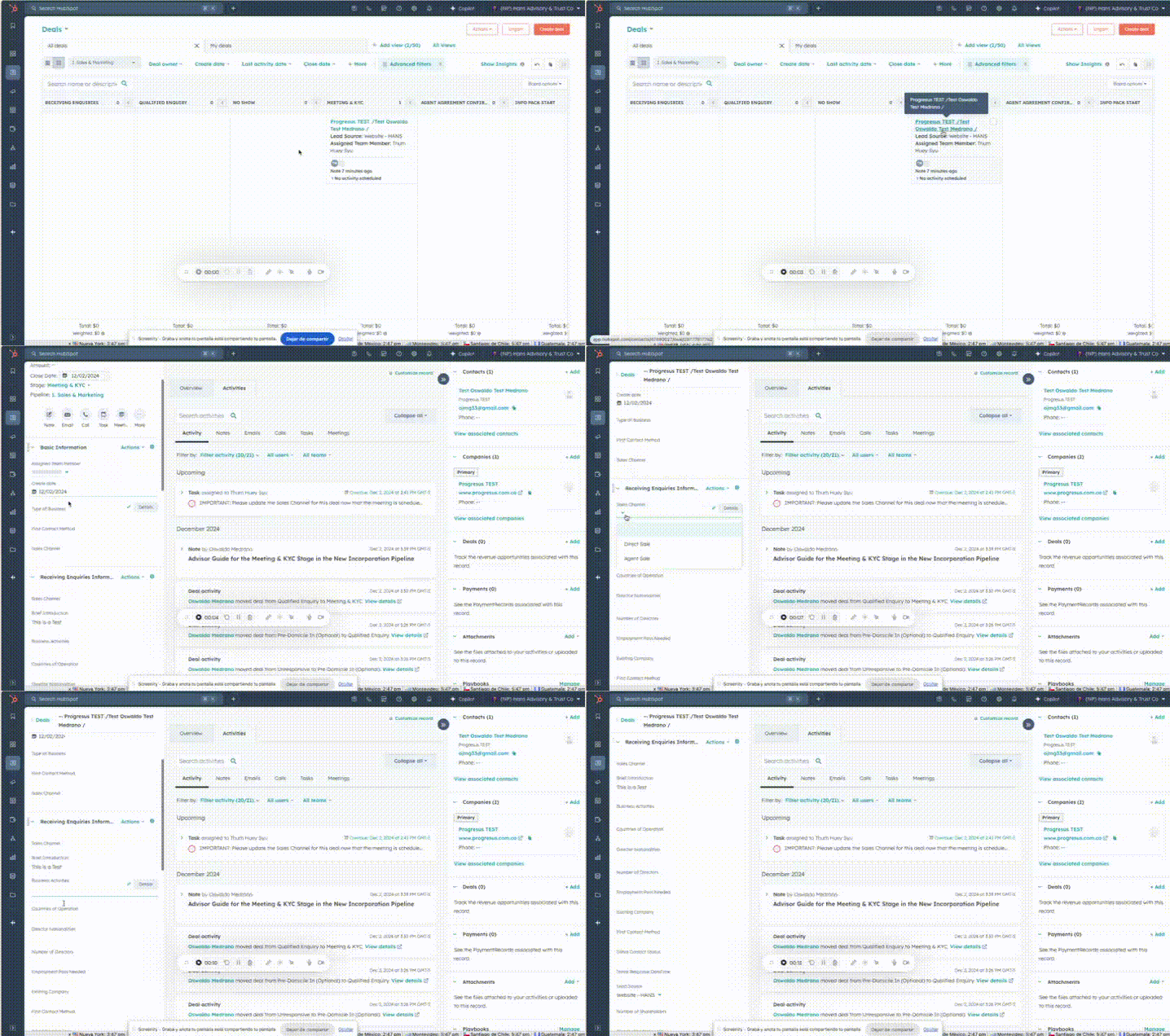
Make sure to complete the “Sales Channel” property. Depending on your selection, the opportunity will automatically move to either the “Agent Agreement Confirmation (Optional)” stage or the “Info Pack Start” stage. If it does not move automatically, you can move it manually.
%204.02.05%20p.m..png?width=450&height=234&name=Captura%20de%20pantalla%202024-12-02%20a%20la(s)%204.02.05%20p.m..png)
In each stage, a series of tasks and reminder emails will be created to help you, as a consultant, complete the necessary actions for that stage. It is important to stay on top of your tasks and move deals from stage to stage in a timely manner.
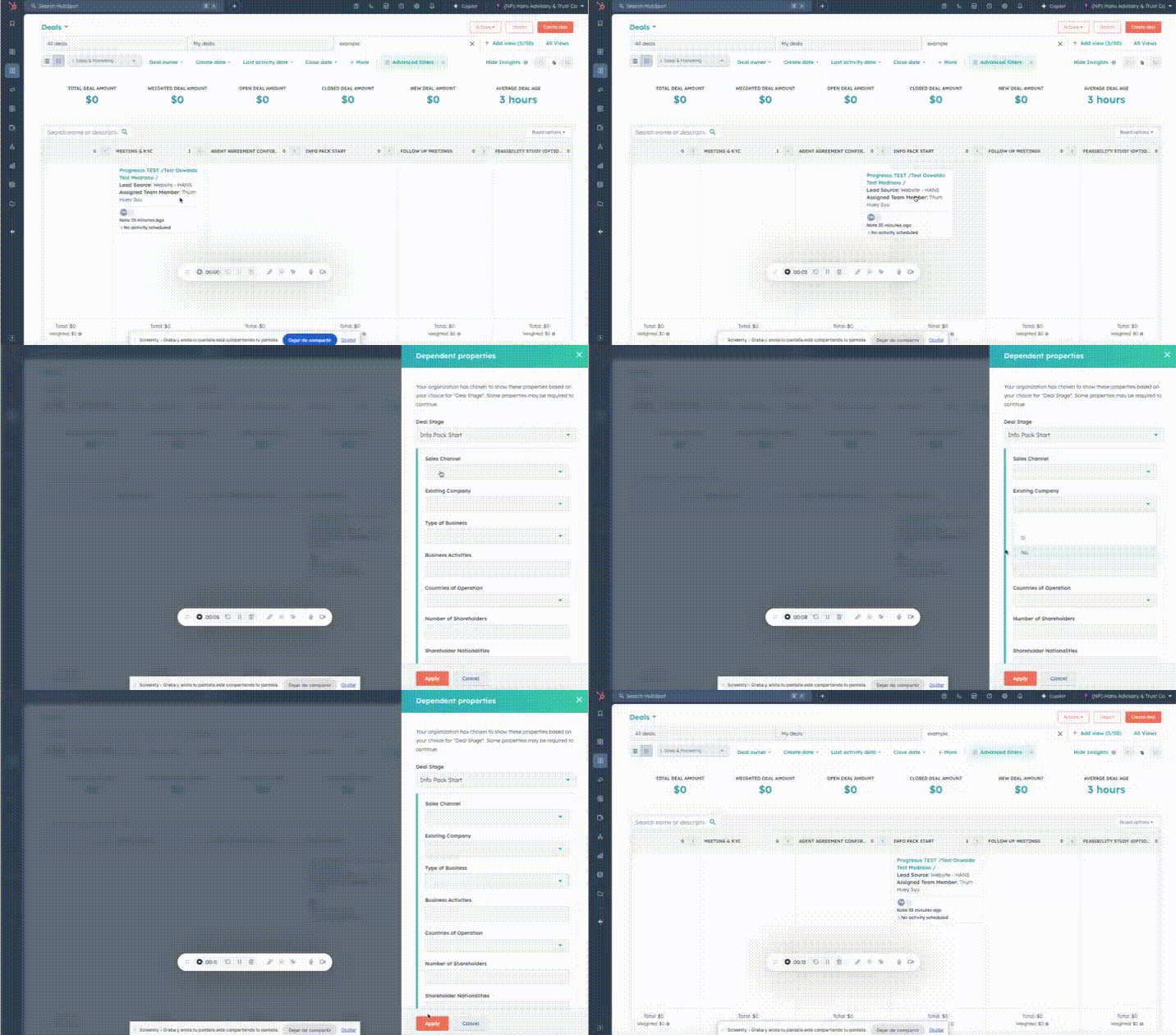
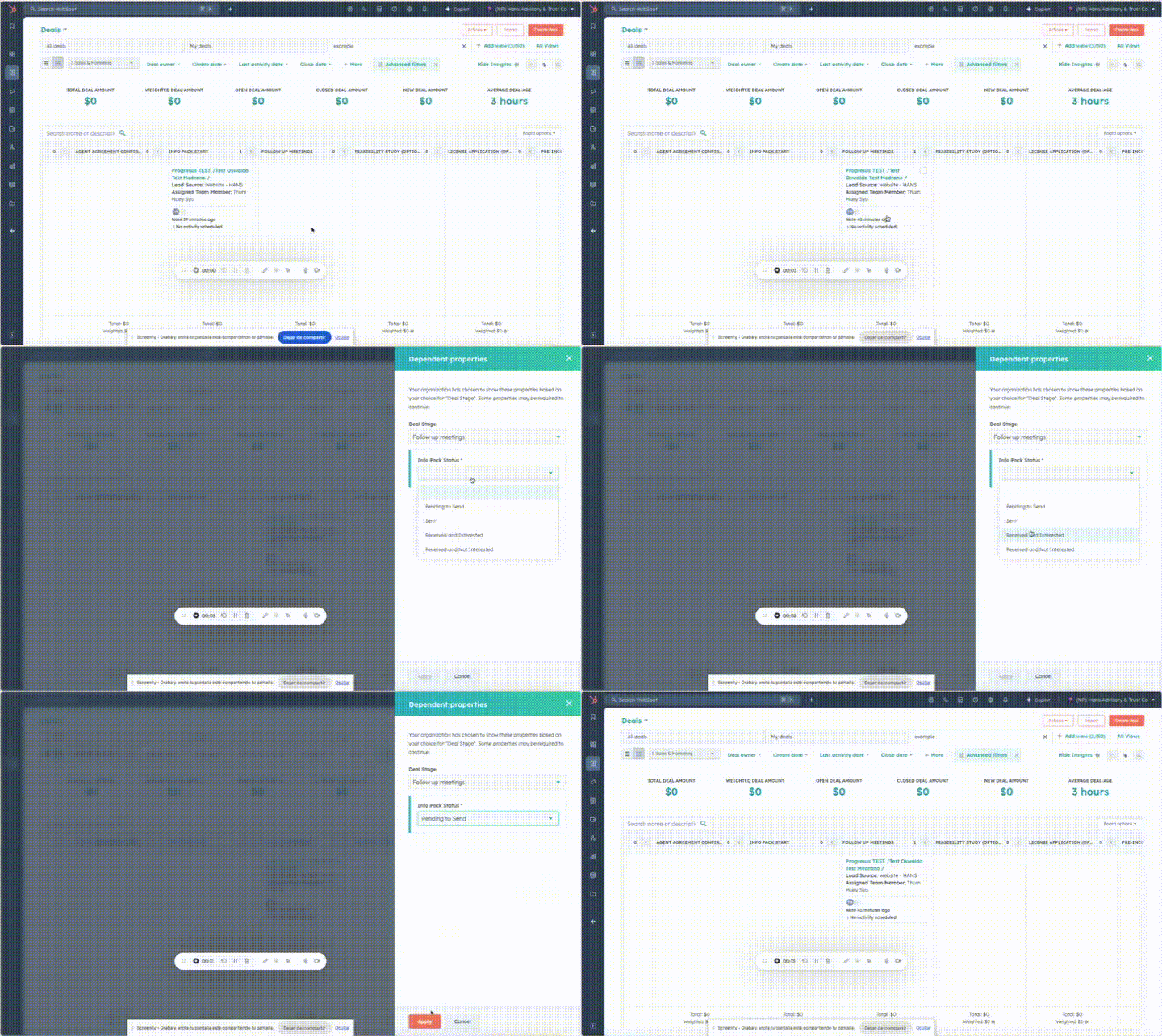
If you manually move the deal record to the “Info Pack Start” stage, the system will require you to fill out some mandatory fields. Be very thorough in gathering and entering all the necessary information.
Move the deal from “Info Pack Start” or “Agent Agreement Confirmation” to “Follow Up Meetings” if you are conducting multiple information-gathering meetings.
The system will require you to clarify the status of the info pack delivery. These confirmations will trigger a series of internal automatic emails with reminders and the generation of automatic tasks for the consultant.
Parallel Pipelines and Parallel Records
Depending on the client’s needs, there may be processes running parallel to the main pipeline. For example, if the client requests a Bank Account Opening, when the consultant moves the deal to that stage, the system will automatically create a new deal in the “3. Bank Account Opening” pipeline, which will be associated with the main deal. The consultant can then manage both processes in parallel.
The same applies to all secondary pipelines:
- 2.Incorporation (SM)
- 3.Bank Account Opening
- 4.EP & DP
- 5.License
- 6.Trust Deed
- 7A. Transfer In
- 7B. Transfer Out
- 7C. Redomicile In
- 7D. Redomicile Out
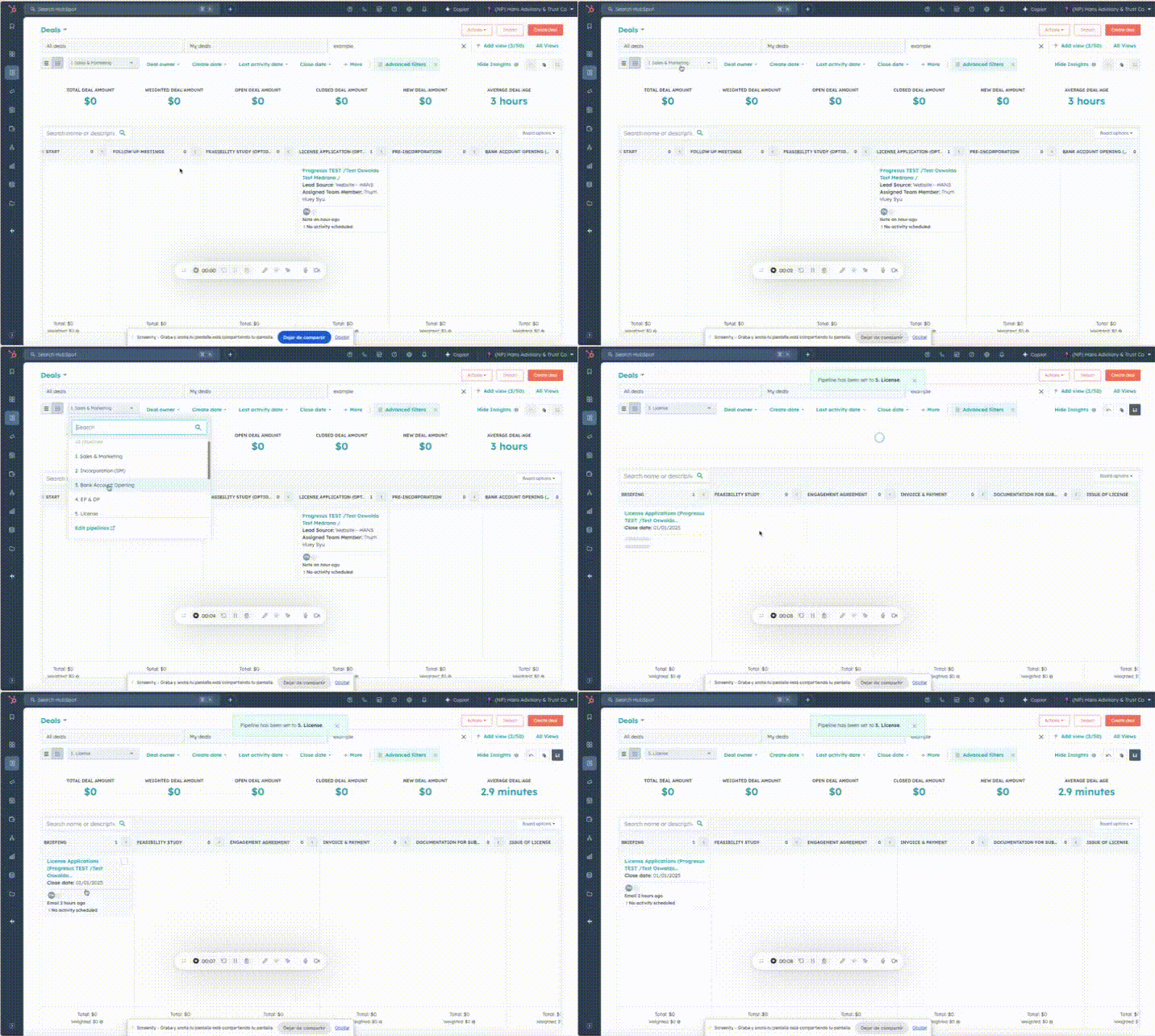
For example, if you move the deal to the “License Application (Optional)” stage, the system will automatically create a new deal in the “5. License” pipeline and associate it with the main opportunity.
.gif?width=450&height=266&name=License%20Application%20(Optional).gif)
If you check the other pipeline (“5. License”), you will find a new opportunity automatically generated with the same name but in the License pipeline. This is designed so that you can manage the main deal and secondary processes with your client in parallel.
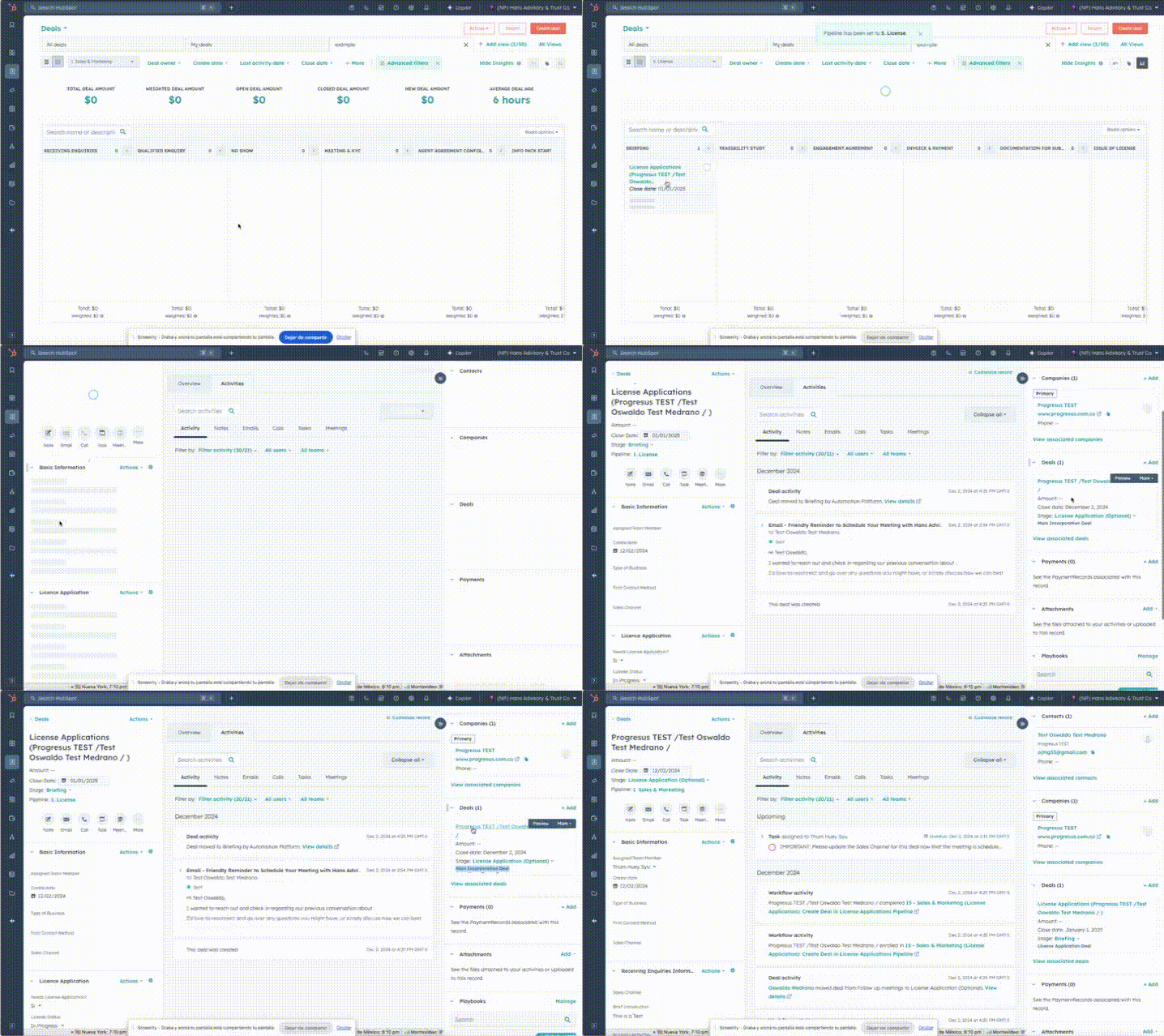
If you access the recently created opportunity in the alternate pipeline, in this case, the 5. License pipeline, you will notice that this new deal is associated with the main deal in the primary pipeline. On the right-hand tab, under the Deals section, you will see the main deal labeled as “Main Incorporation Deal.” Clicking on the name of that deal will take you directly to the main deal.
Each time you move the opportunity to a stage connected to an alternate pipeline, an associated opportunity will be created. For this example, I am moving the main opportunity through all the optional stages to demonstrate how the alternate opportunities are generated.
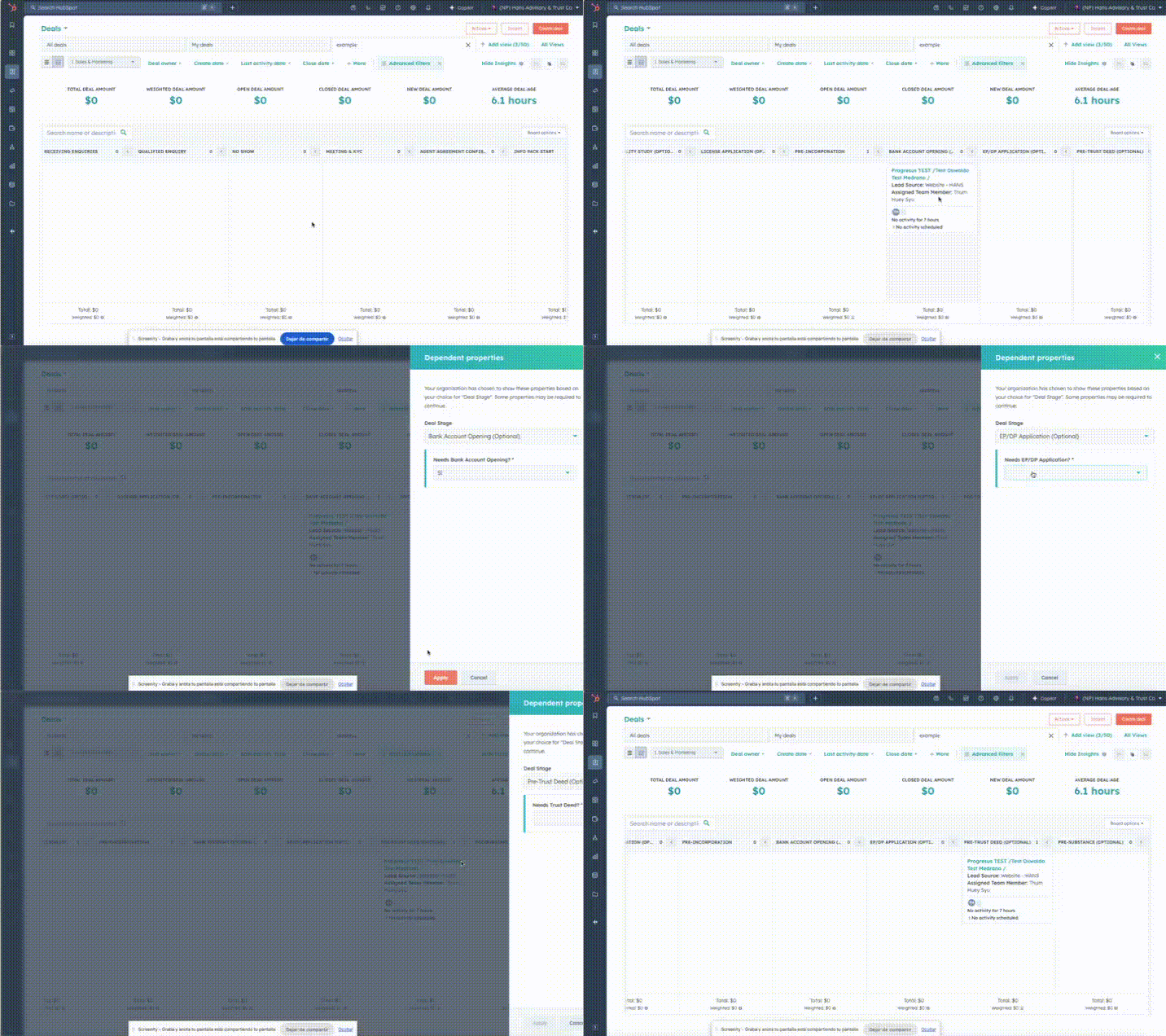
Note: Each time you move the main deal to a stage that generates an associated deal in the alternate pipelines, you should wait a few minutes. If you move the deal immediately, there is a chance that the automation might not execute properly.
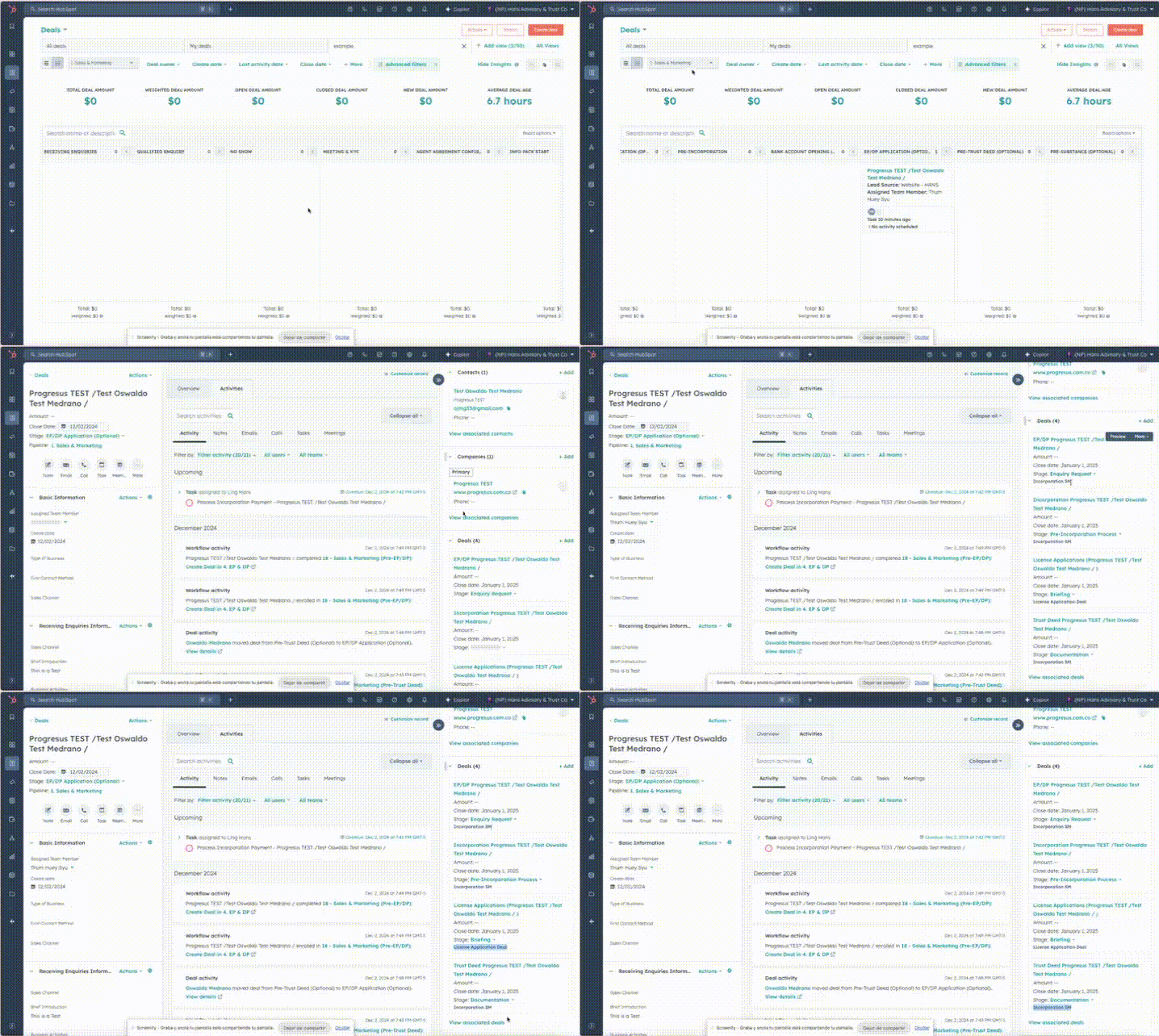
If you access the main opportunity, you will see all the secondary deals created in the alternate pipelines listed on the right, under the Deals section. This allows you to keep track of the additional processes, such as License, EP&DP, Trust Deed, Bank Account, etc., that are associated with the main deal.
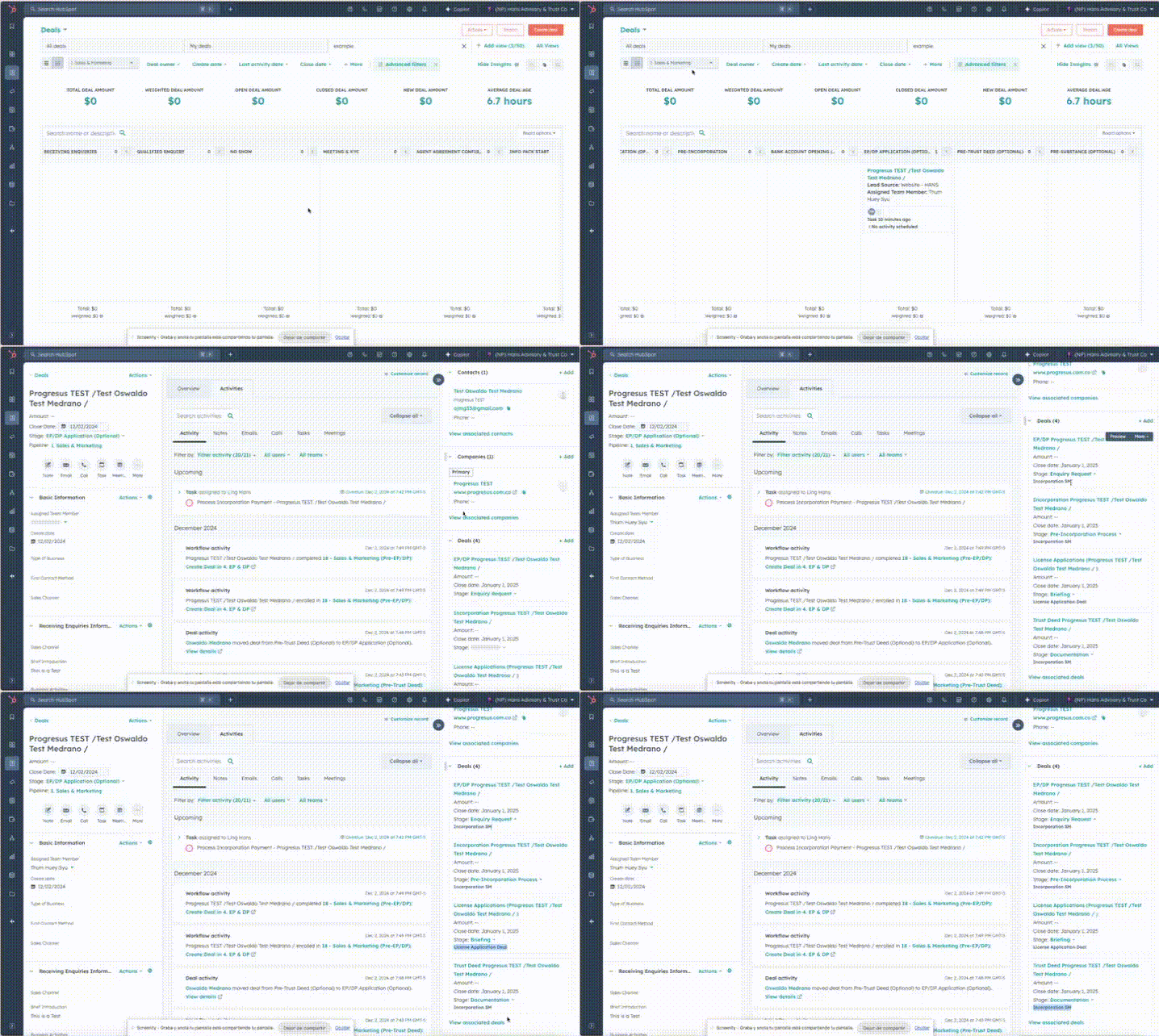
On the other hand, if you access a secondary opportunity, for example, by going to the EP&DP pipeline and opening the secondary opportunity, you will only see the main opportunity listed.
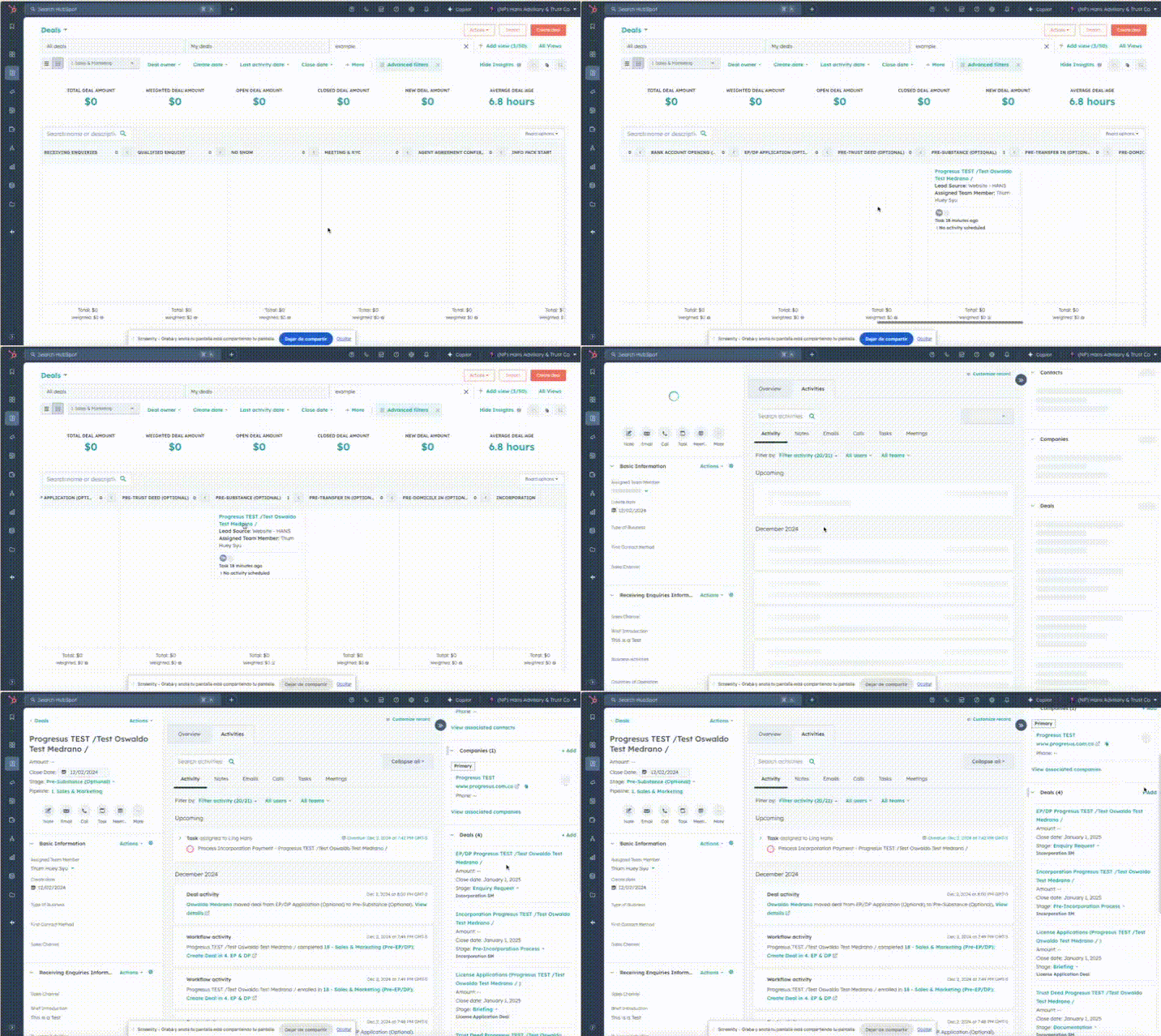
All alternate pipelines automatically create associated opportunities except for two. The only pipelines that do not create opportunities automatically and must always be created manually are “7B. Transfer Out” and “7D. Redomicile Out.”
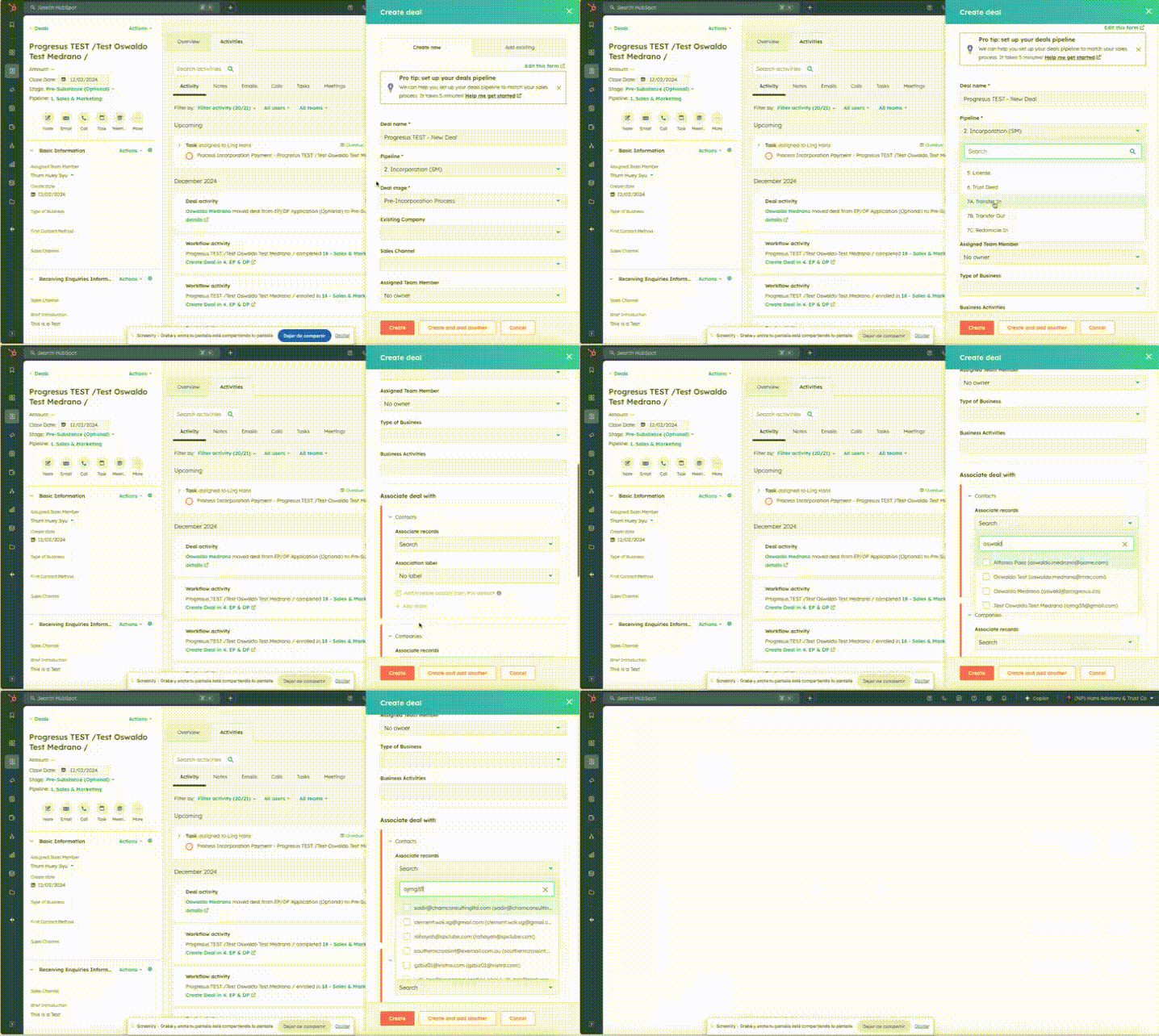
To create these opportunities manually, follow these steps:
1. Go to the main opportunity.
2. On the right, under Deals, click on + Add.
3. Create a name that is easy to associate, and most importantly, select the corresponding pipeline, either “7B. Transfer Out” or “7D. Redomicile Out,” and the stage Invoice & Payment Collection.
4. Fill out the rest of the form if applicable.
5. Ensure that this opportunity is associated with the main contact and the main company (if applicable).
As you near the end of the process, ensure that all deals are closed. Each deal must be in a won or lost stage. For example, the main deal should end in either “Complete,” “Unresponsive,” or “Rejection by Authority.” Additionally, make sure all alternate deals have been finalized as well. Each one must be in a closed stage.
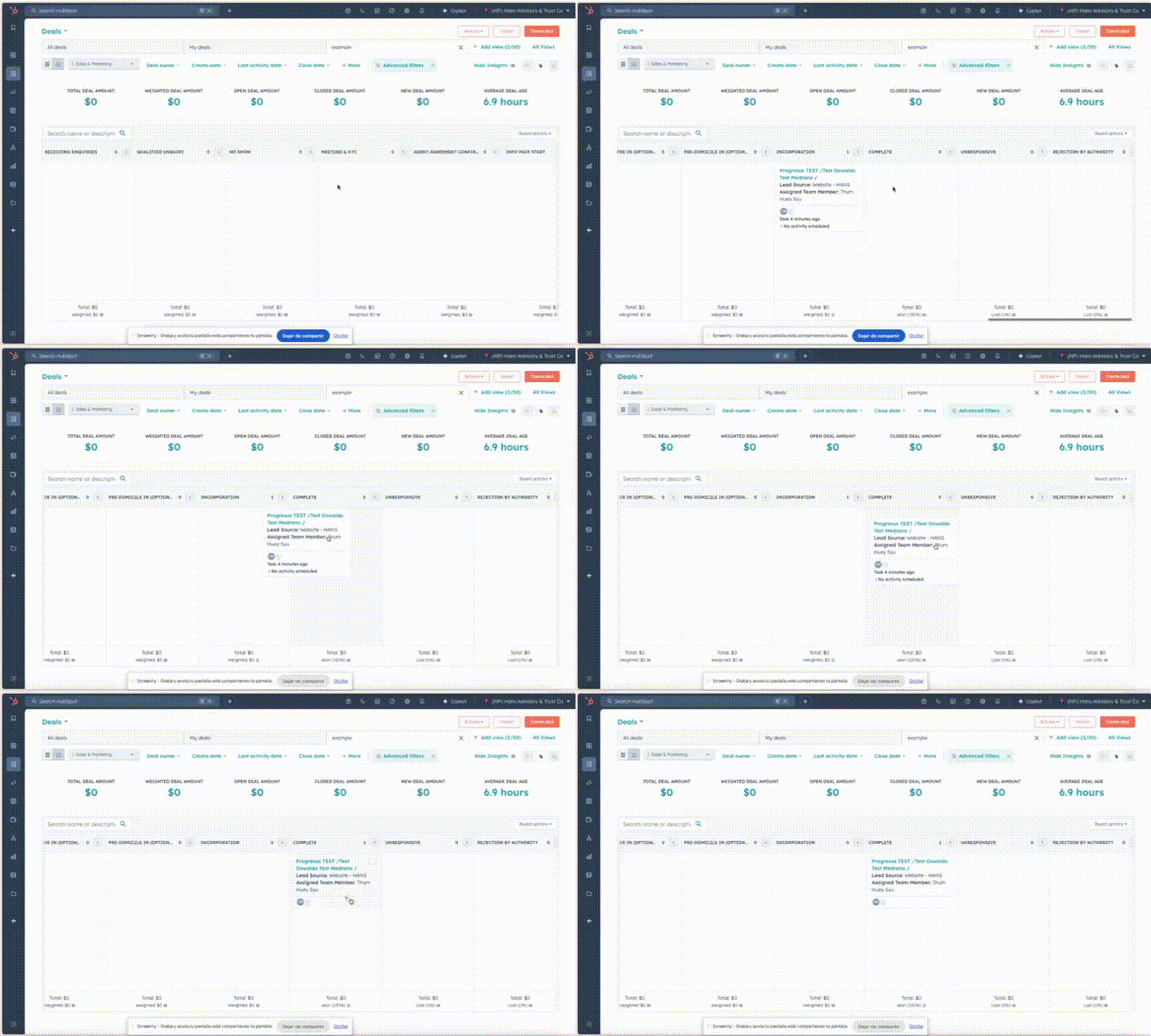
How Are Payments Managed?
You may have noticed that in both main and alternate deals, there is a section on the right-hand side called “Payments.” This section is an object that manages finances. Each time a deal reaches a stage that involves payments, a payment record is automatically created and associated with the relevant deal. For example, in this case, the main deal has two payments generated.
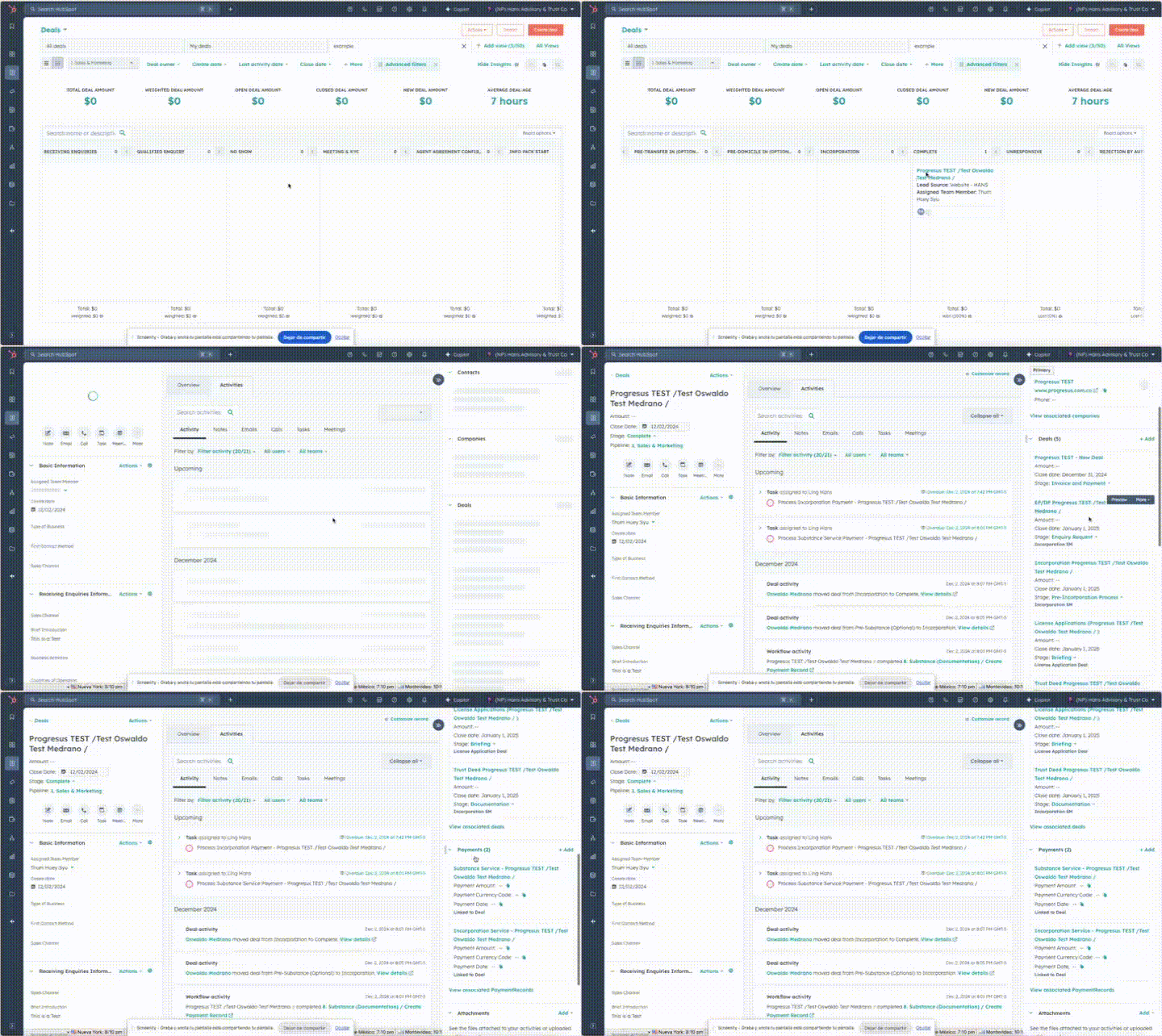
Each time a payment is generated, the finance team will be notified and can review the Payments object to verify the status of a specific payment.
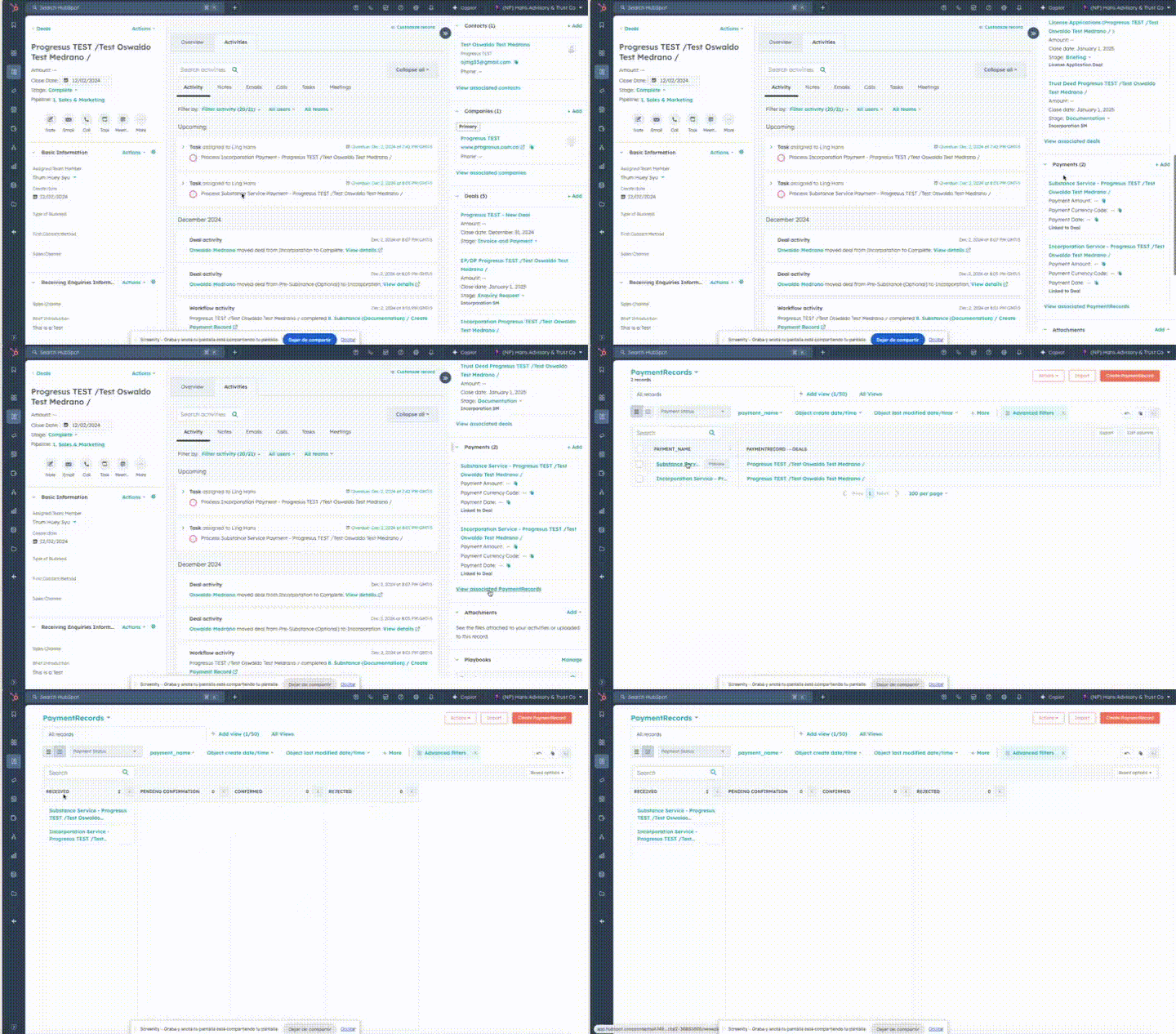
Note: Be careful! Payments are informational for the consultant and should only be modified by the finance team. As you can see, the status of a service payment can be tracked through any of the stages in the payments pipeline: “Received,” “Pending Confirmation,” “Confirmed,” and “Rejected.”
%208.14.33%20p.m..png?width=450&height=156&name=Captura%20de%20pantalla%202024-12-02%20a%20la(s)%208.14.33%20p.m..png)
Although everything is configured for payments to be generated automatically, If the finance team wants to create a payment manually, they can do so from the Payments object by clicking the Create button and filling out the form. They must ensure the payment is associated with the correct deal.
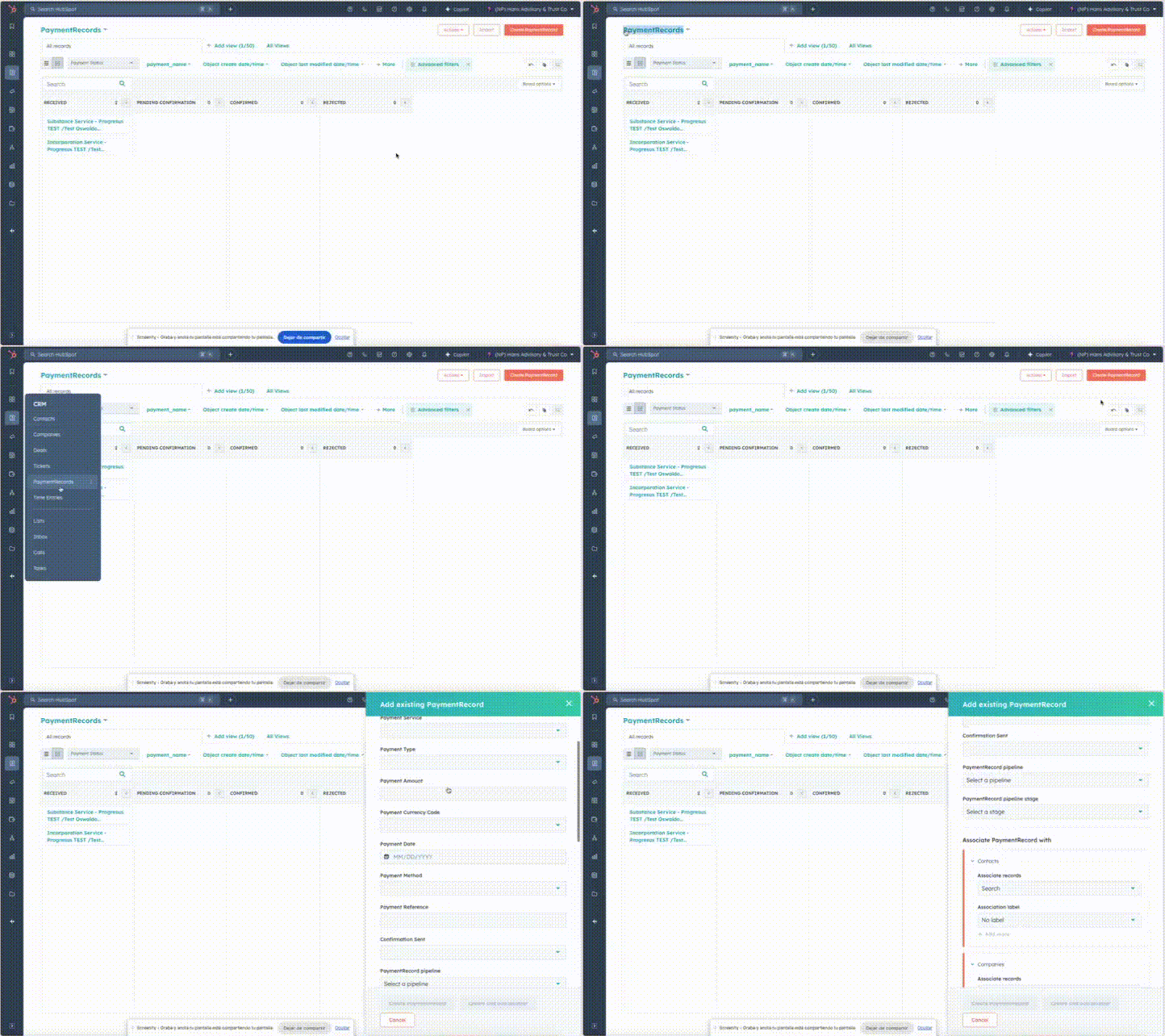
Honestly, I recommend that if a Payment record needs to be created manually, it should be done directly from the deal it needs to be associated with. To do this:
- Go to the deal that requires the payment and open it.
- On the right-hand panel, under Payments, click + Add.
- Fill out the form.
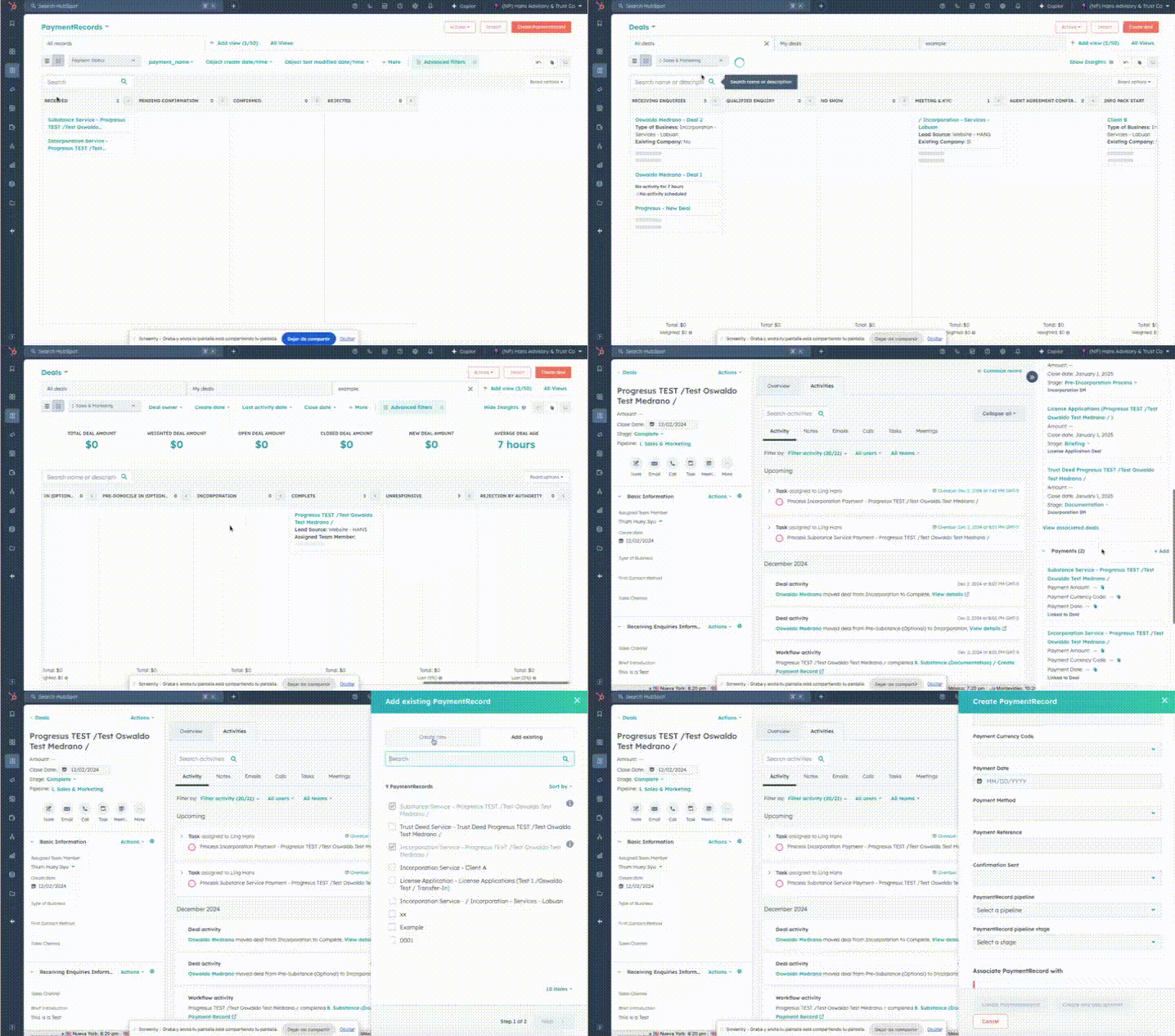
Note: Make sure to associate the payment with the correct records.